
Document templates — shared letterhead, blank, and merge templates that seed new working files
Last updated: July 12, 2026 by Steve
Document Templates
Document templates are tenant-shared starter files that seed new working files in a request's Documents workspace. Each template is a letterhead, blank, or merge document (Word or Excel) stored once and copied whenever a coordinator starts a new draft — so response letters and worksheets begin from a consistent, branded starting point.
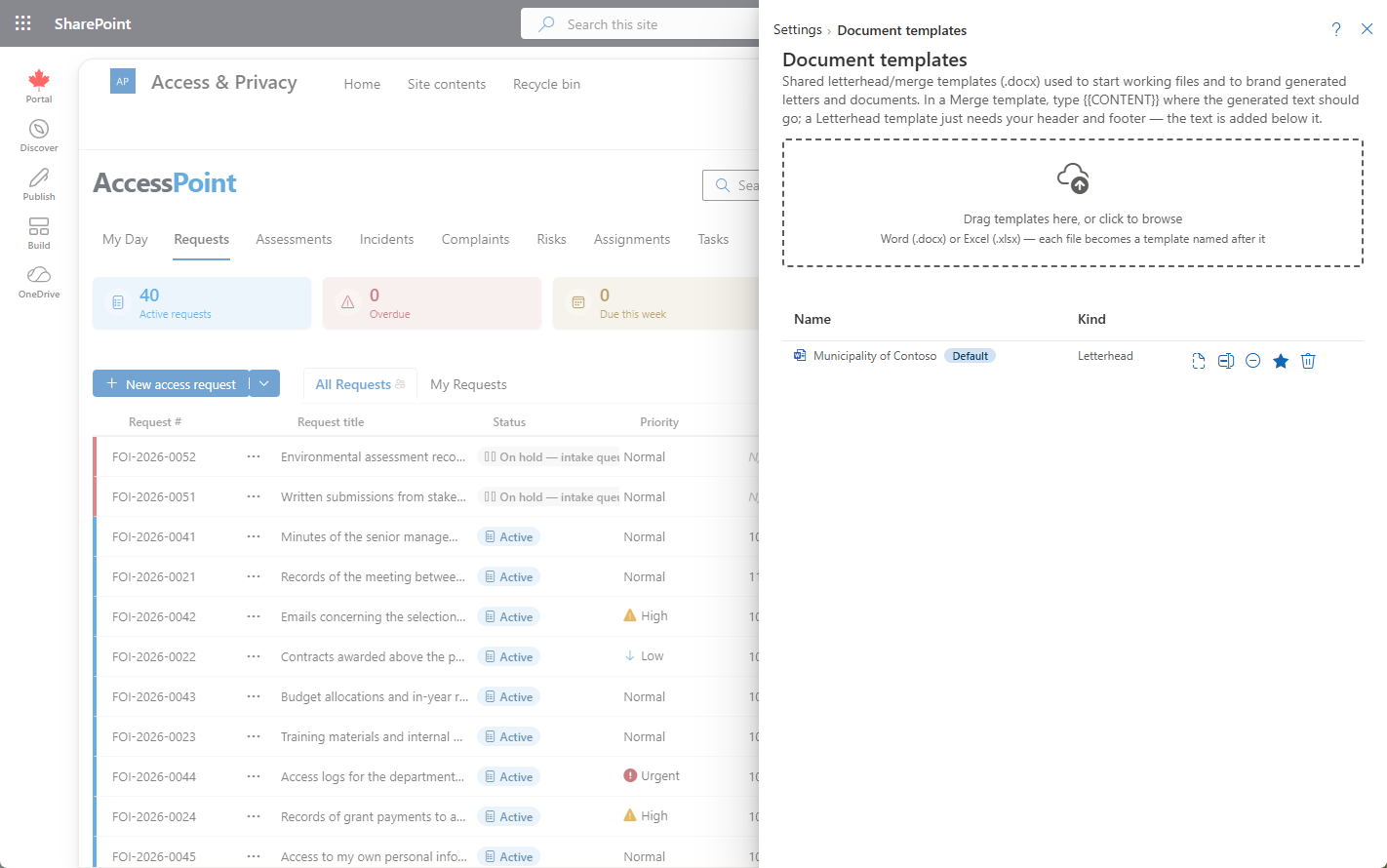
Where to find it
Open the Settings hub and choose Document templates, grouped with the other template editors — Correspondence templates and Notification templates.
Template fields
| Field | What it controls |
|---|---|
| Name | The label shown when a coordinator picks a template for a new working file |
| Kind | Letterhead, Merge, or Blank |
| File format | The document format — docx or xlsx |
| Template file | The uploaded document that is copied to seed the working file |
| Active | Only active templates are offered |
Template kinds
| Kind | What it produces |
|---|---|
| Letterhead | A pre-branded document to draft on top of |
| Blank | An empty starter in the chosen format |
| Merge | A document whose fields are filled in when it is used |
How it affects end-user behavior
On a request's Documents workspace, the Working files sub-tab is a scratch area for drafts. When a coordinator starts a new working file from a template, the template is copied in with check-out/versioning and notes. For requests, the Finalize action seals a working-file draft into correspondence. These are distinct from the letterhead or merge template chosen for a correspondence PDF copy — document templates seed working files, correspondence templates render sent letters.
Tips
- Keep an active letterhead for each kind of document your office drafts.
- Deactivate outdated templates rather than deleting them, so existing working files keep their provenance.
- Use merge templates where a draft should pre-fill known details; use blank for a free-form starter.