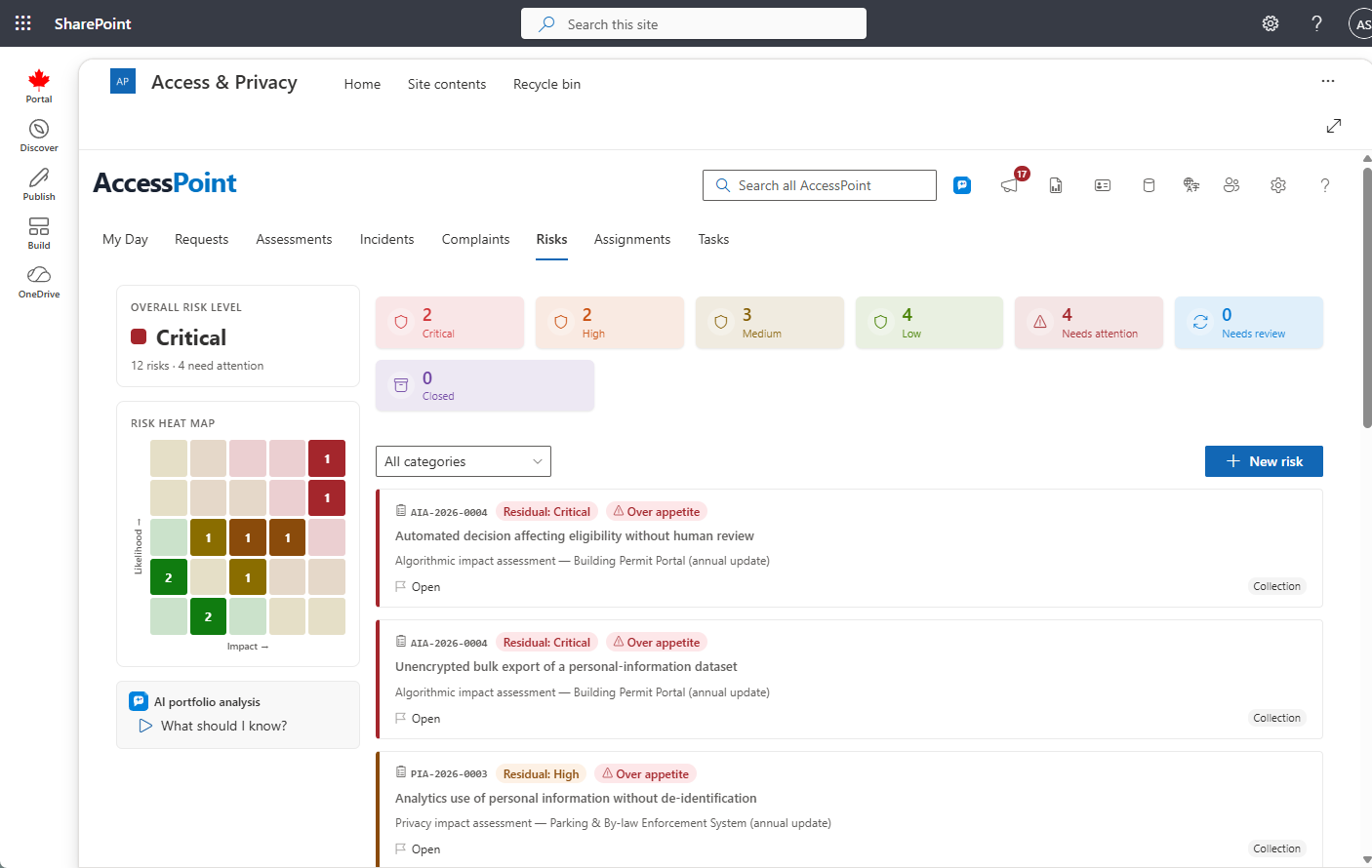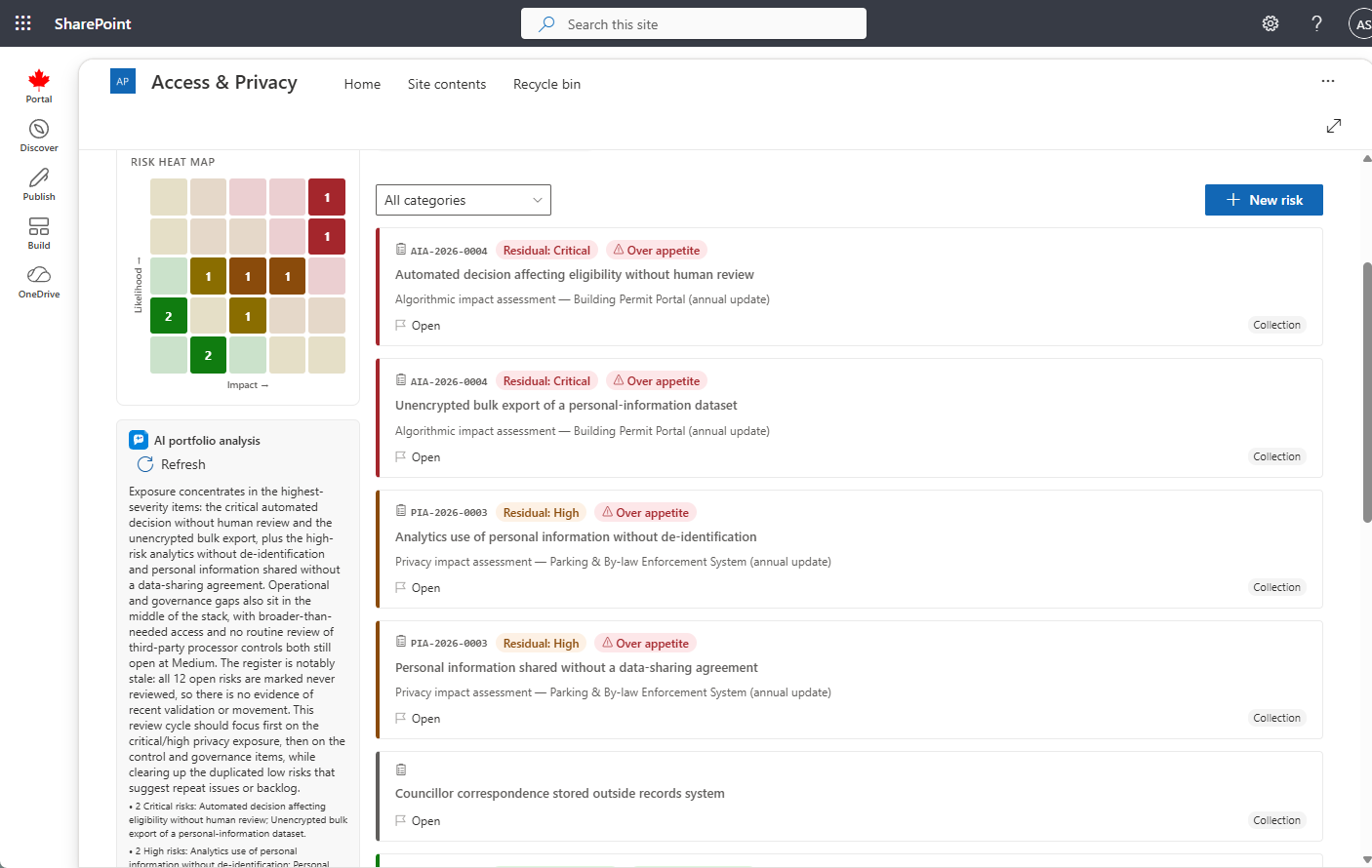
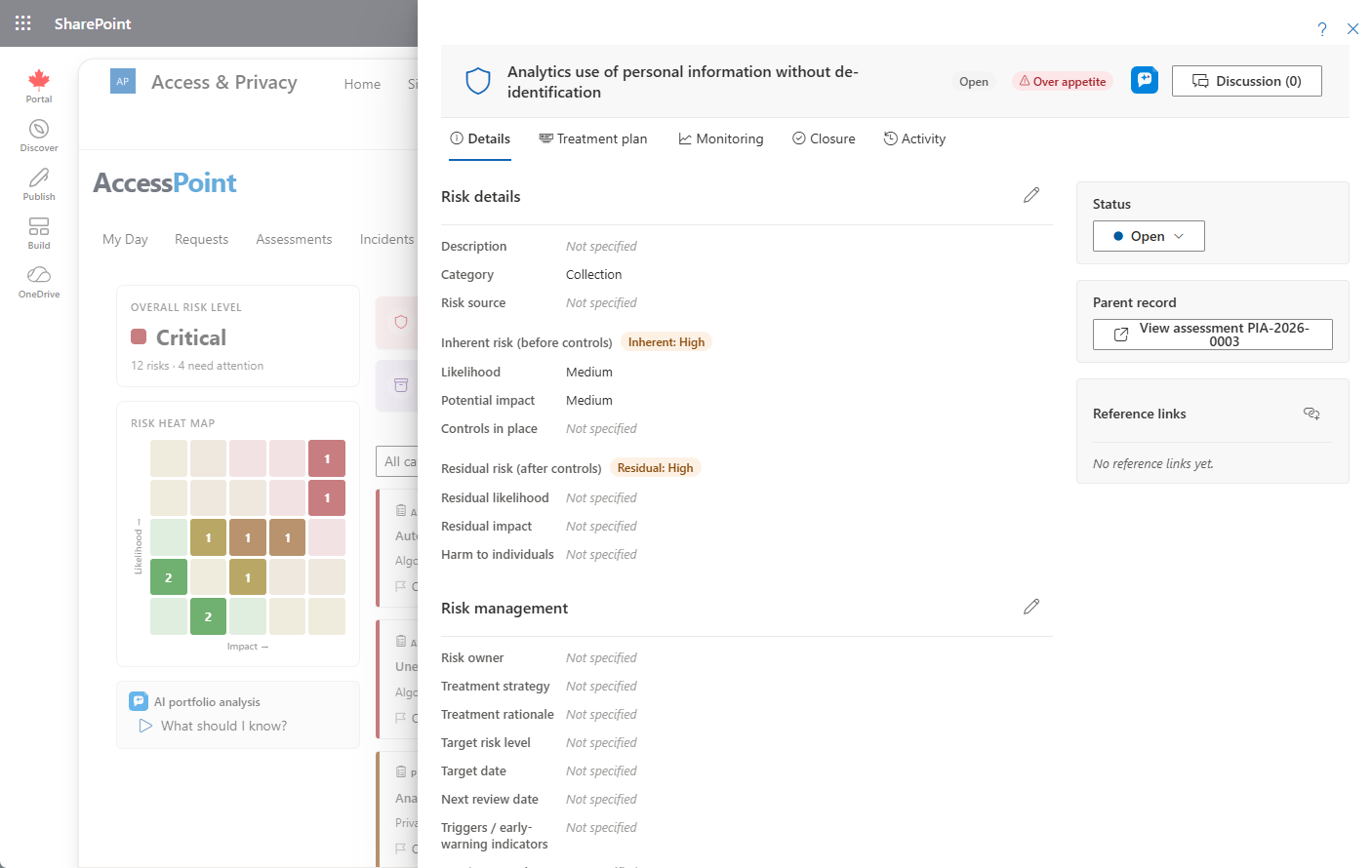
The privacy risk detail panel — status, inherent and residual scoring, the risk-management card with governed acceptance, closure, and activity
Last updated: July 18, 2026 by Steve
Risk Details
The risk detail panel is the full risk workspace, opened from the top-level Risks tab, an assessment's risk register, or an incident. It is an ISO 31000-aligned tool for identifying, scoring, treating, and monitoring privacy risks. The panel splits into visually separated section cards — Risk details and Risk management — each with its own pencil that flips just that card into edit mode with its own Save and Discard. There is no panel-wide edit toggle; you edit one card at a time, and every edit session re-seeds from the last saved values, so Discard is always safe.
Status
The header carries the risk's status dropdown. You move a risk between the open states directly here:
| Status | Meaning |
|---|---|
| Open | Identified, not yet actively treated |
| Treating | Controls or treatment tasks in progress |
| Monitoring | Controls in place; watching indicators |
| Accepted | Residual risk formally accepted |
| Closed | Set only from the Closure tab; makes status read-only |
Scoring a Risk
The Risk details card captures the risk's identity (title, description, category, source) and two likelihood × impact pairs:
- Inherent — likelihood and impact before controls.
- Record your controls / mitigation measures in between.
- Residual — likelihood and impact after controls.
AccessPoint derives the inherent and residual rating bands (Low / Medium / High / Critical) from those pairs and shows them as coloured badges, plus a residual trend arrow — up in red, down in green — versus the last score. In a privacy assessment you can also set the Harm to individuals level (No risk / Minimal / Possible harm / Real risk of significant harm). On an incident the harm band is instead server-derived from the two breach axes and shown read-only.
Managing the Risk
The Risk management card holds:
- The treatment strategy — Avoid / Reduce / Transfer / Accept
- A treatment rationale
- The risk owner
- The target risk level and target date
- A review cadence — monthly, quarterly, semi-annual, annual, or ad-hoc — with the next review date
- Triggers, a contingency plan, and dependencies on sibling risks
Choosing the Accept strategy reveals an inline acceptance sub-form: approver, expiry date, conditions, and justification. If the risk is over your risk appetite, a justification and an expiry are mandatory before it will save. This enforces time-boxed, governed acceptance rather than a silent sign-off.
The risk can carry assignable treatment actions — see Risk Treatment Tasks — and measurable indicators defined from its Monitoring tab, see Risk Indicators.
Closure, Activity, and Discussion
- The Closure tab is the only route to Closed: add a close note and Close, or later Reopen with a reason. Assessment risks can also be recorded as an incident here.
- The Activity tab is a read-only audit change-feed of lifecycle, treatment, and indicator events.
- The Discussion button opens a layered comment thread anchored to the risk, with an unread count.
Risk Portfolio Analysis
When AI Assist is enabled, the Risks dashboard offers a risk portfolio analysis — a What should I know? card that narrates your register in plain language: where exposure concentrates, which reviews are overdue, treatment target dates that have slipped, and acceptances that have expired. It reads across the risks you can see and summarizes the pattern so it is easy to spot at a glance.
The analysis is a read-only narration of the register. It surfaces only what is already recorded and never changes a risk — every score, treatment strategy, and acceptance stays exactly as your team set it, and a person still decides what to act on. AI Assist runs on an Azure OpenAI resource in your organization's own Azure subscription and region: risk data never leaves your tenant, Microsoft does not train its models on it, and prompts and responses are not stored (only usage metadata is kept). The card appears only when your administrator has deployed AI Assist and enabled the feature under Settings → Features.