
Assessment detail — overview, lifecycle rail, sections filler, section assignments, risks, documents, review, closure, activity
Last updated: August 06, 2026 by Steve
Assessment Details
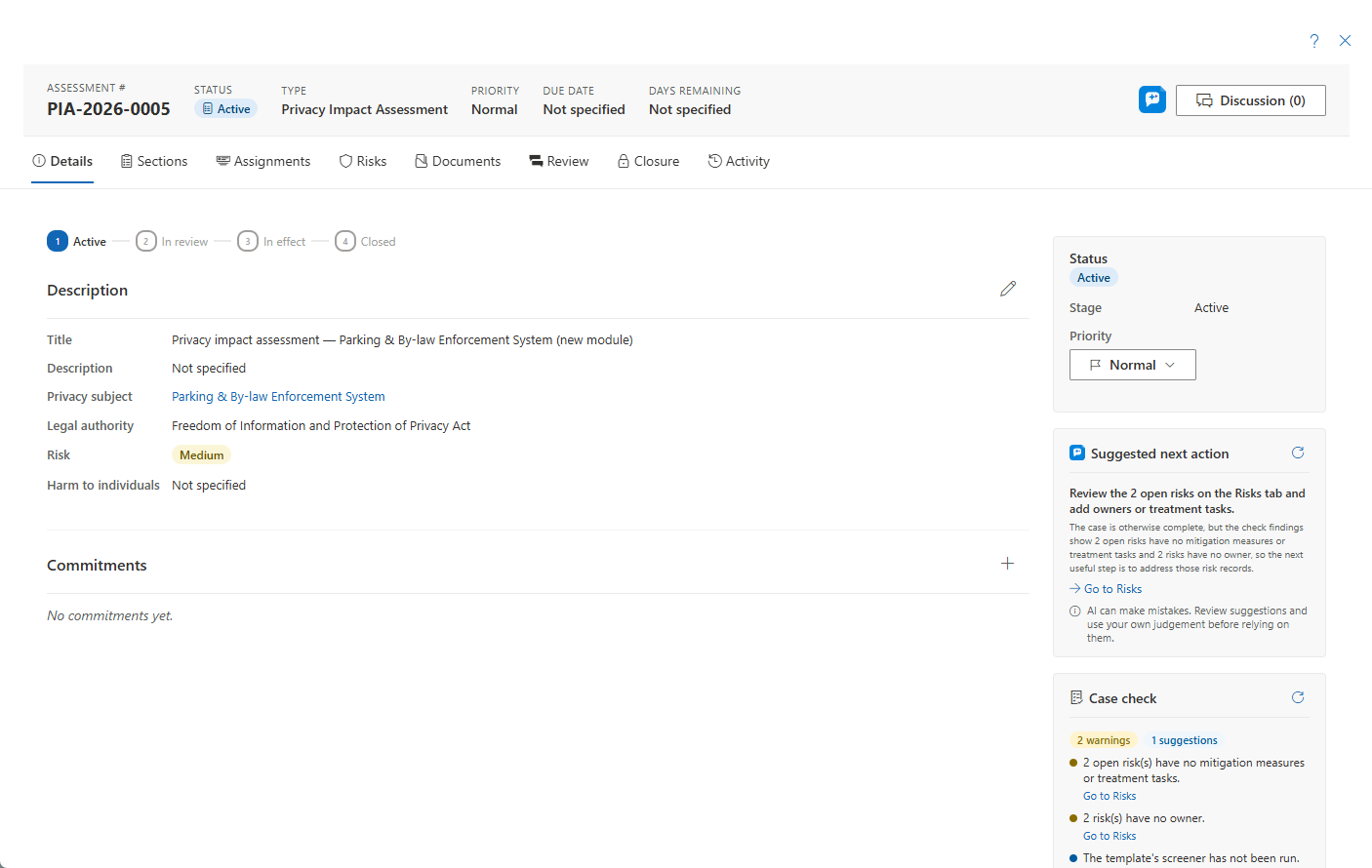
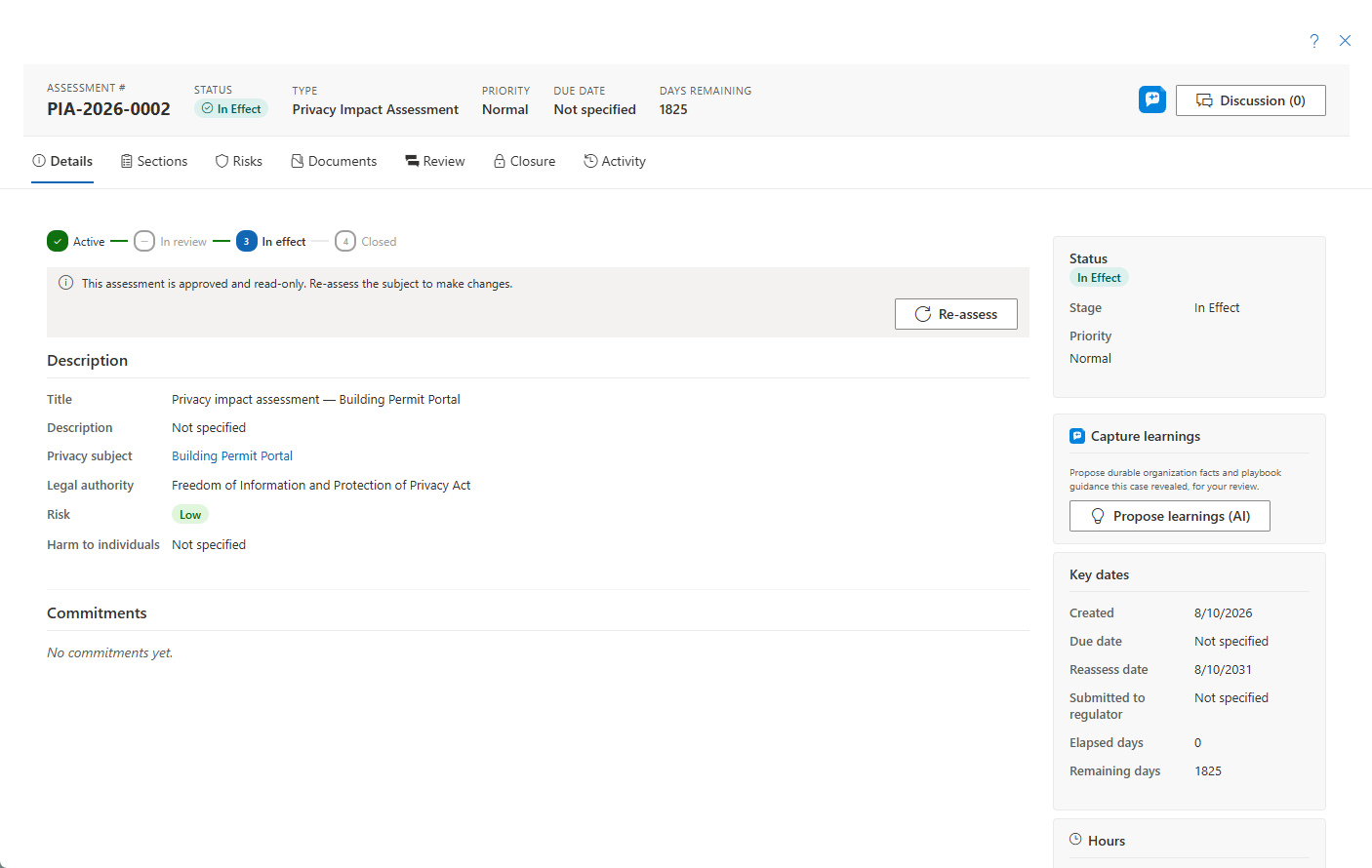
Opening an assessment shows a full-width panel where privacy analysts, security assessors, and the coordinators who own the assessment do the detailed work. The header carries the assessment number, status chip, type, priority, due date, days remaining, and a Discussion button; the content is organized into tabs.
Overview Tab
The main column carries:
- The compact lifecycle rail — Active → In Review → In Effect → Closed. In Review is skipped when no review workflow ran.
- The editable Description section — title and description, with optional per-language translations.
- Custom fields configured for assessments.
- The Commitments card — the "privacy promises" register of measures, conditions, and undertakings tracked to completion. See Commitments.
The sidebar holds:
- Status — change to another status within the current stage. Cross-stage moves happen through actions like starting a review, not a manual button. Priority is set here too.
- Screening — the screener determination, if one ran. It is excluded from the exported report.
- Key dates — created, due date (editable), next review, and the optional submitted to regulator date. Elapsed and remaining days are computed; once In Effect the countdown targets the next review date.
- Hours — log and track effort against estimate.
- Assigned owners — coordinator and senior official.
- Linked entities and reference links.
- AI cards — when AI Assist is enabled, Suggested next action and Case check cards can also appear in the sidebar, offering a one-step recommendation and quality-review findings for the assessment.
Click the subject name to open its detail — read-only from here, because subjects are managed in the Privacy subjects & controls directory.
Sections Tab
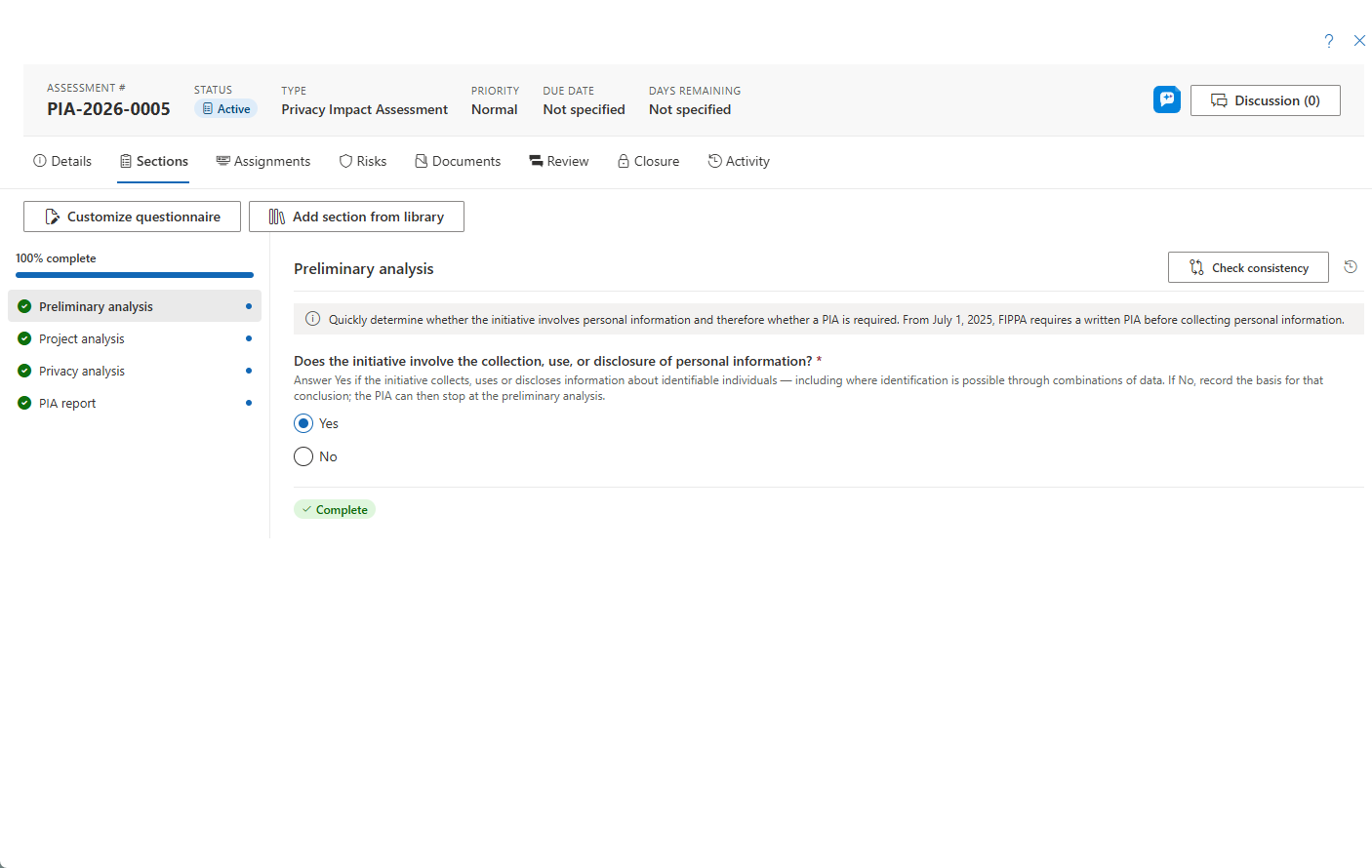
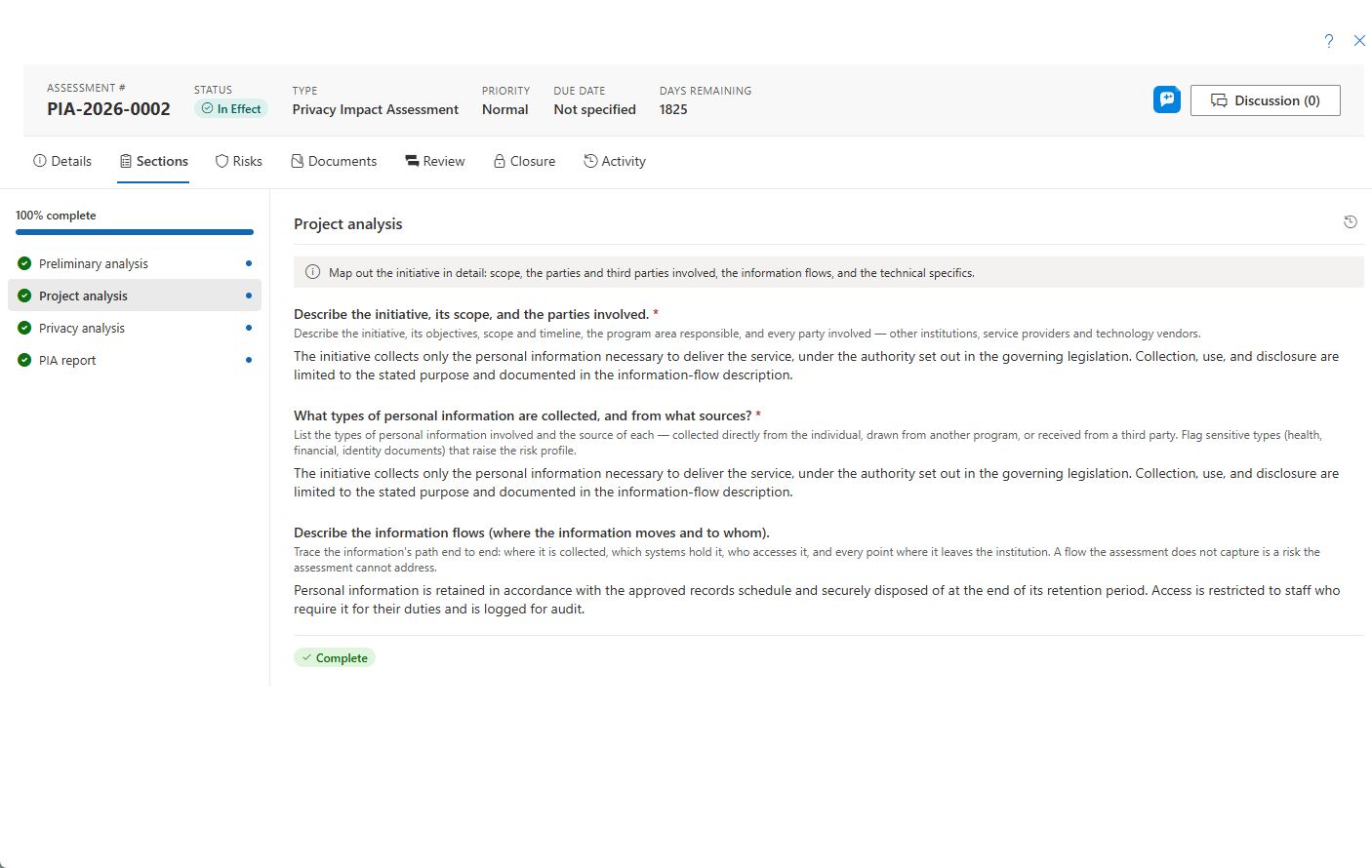
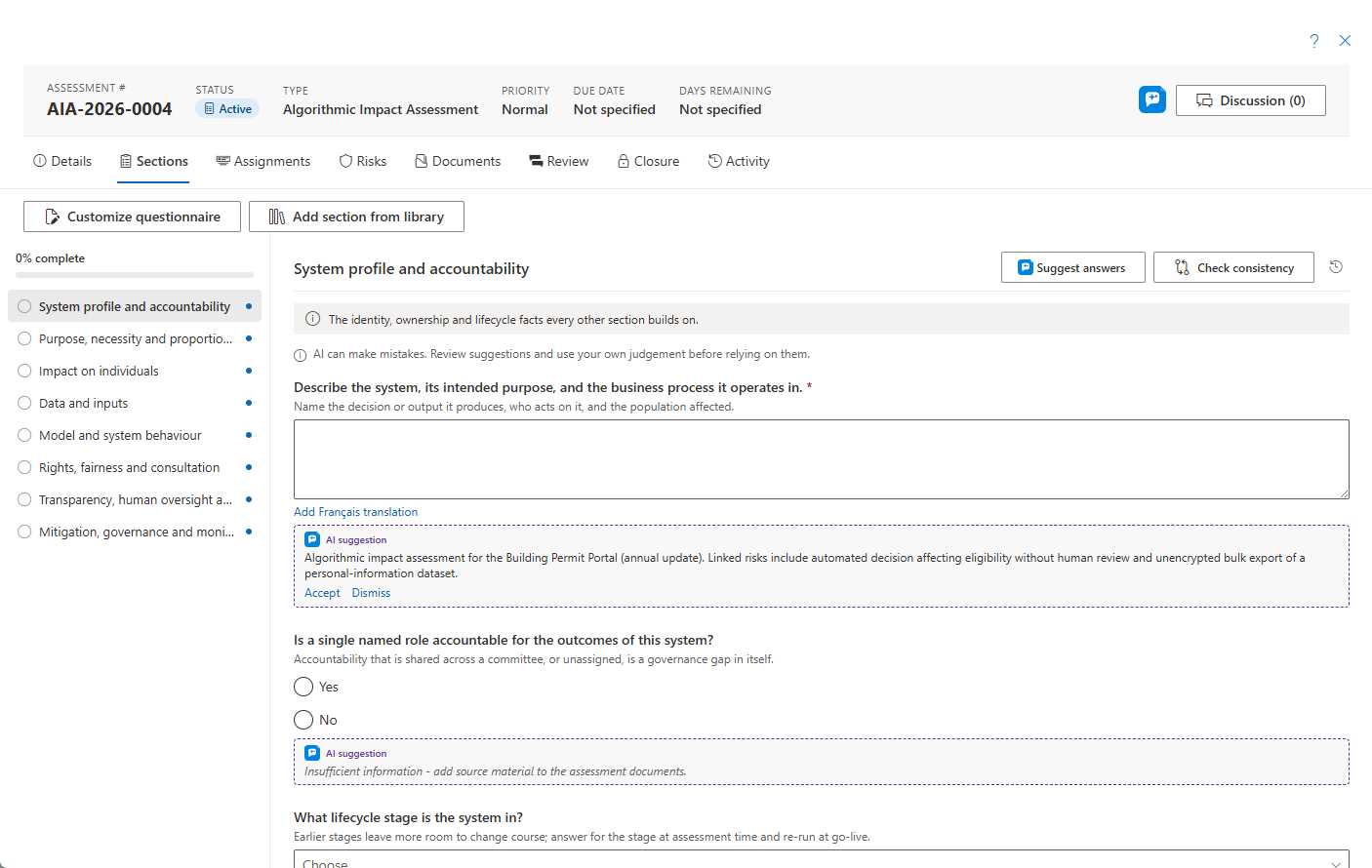
The Sections tab is the questionnaire filler — a left rail of sections with typed questions. If the questionnaire was customized, a provenance banner names the source template and version. Holders of the right permission get an Edit questionnaire entry point — or Customize while the assessment is still in the Active stage — that opens the template builder on the assessment's own copy without touching the shared template. From there, Add section from library appends optional add-on section modules onto the assessment's own copy of the questionnaire — these are never offered as a standalone questionnaire on their own.
When AI Assist is enabled, the questionnaire adds two optional helpers:
- Suggest answers drafts answers for a section's unanswered questions, grounded on the assessment's own documents, its record, and your Organization profile. Where the material doesn't support an answer, the question stays blank with an "insufficient information" hint rather than plausible filler. You accept or dismiss each suggestion per question — nothing is applied on its own.
- Check consistency reviews the whole answer set for contradictions across sections.
Every suggestion is an editable draft that a person decides on. AI Assist runs on an Azure OpenAI resource in your organization's own Azure tenant, Microsoft does not train its models on your data, and prompt and response content is not stored — only usage metadata. AI Assist and its individual features are toggled under Settings → Features; see the Features administrator page.
Risks Tab
The assessment's risk register, scored on 5-point Likelihood × Impact, with the effective overall-risk override and, for types that enable it, the harm-to-individuals (RROSH) determination. Risks can carry mitigation tasks and discussions. See Risk Details.
When AI Assist is enabled, Suggest risks (AI) drafts up to five risk candidates grounded in the assessment, the subject's prior incidents and assessments, its disclosure and vendor register, and similar risks elsewhere in your register — each candidate cites what motivated it. Add as risk opens the normal risk form pre-filled for your review; nothing is recorded until you save it.
Assignments Tab
Section assignments — handing a questionnaire section to a subject-matter expert. The tab is shown to users who can assign. See Section Assignments.
Documents Tab
A reference-document workspace for every assessment. For Security (SEC) assessments, generate-SSP/SAR actions appear, alongside extra SEC-only tabs: Categorization, Controls, POA&M, and ATO.
Review Tab
The configurable review/approval stepper on the assessment. Starting a review moves the assessment to In Review; a reviewer holding the review-act permission can approve here even without modify rights.
Closure Tab
Guides the In Effect / Closure lifecycle, collaborators, the regulator summary, and document export. View in Documents jumps to the generated report's preview. The three summary narratives (regulator, executive, publication) support optional per-language translations, and the regulator summary document renders the chosen language's text.
When AI Assist is enabled, the closure tab's Draft with AI button offers three summary styles, each written into the same editor for you to review, edit, and save:
- Regulator summary — the regulator-facing summary.
- Decision-maker executive summary — a concise summary for the person signing off.
- Public-publication summary — a version that deliberately excludes personal data and flags borderline passages with
[REVIEW: …]markers for human confirmation.
Each style is a starting draft, never a finished document — a person always reviews and decides. The same responsible-AI handling applies: processing runs in your own Azure tenant, Microsoft does not train on your data, and prompt and response content is not stored.
Activity Tab
The full assessment timeline.
Frozen Records and Re-assess
Once an assessment is In Effect (approved) or Closed, its content is read-only. Changes go forward through Re-assess, which starts a fresh assessment on the same subject — see Creating Assessments. Status advancement (for example In Effect → Closed) stays available to holders of that permission.