
The complaint detail panel — tabs, lifecycle rail, statutory clock, outcome and allegations, correspondence, investigation, representations, and guided closure
Last updated: August 06, 2026 by Steve
Complaint Details
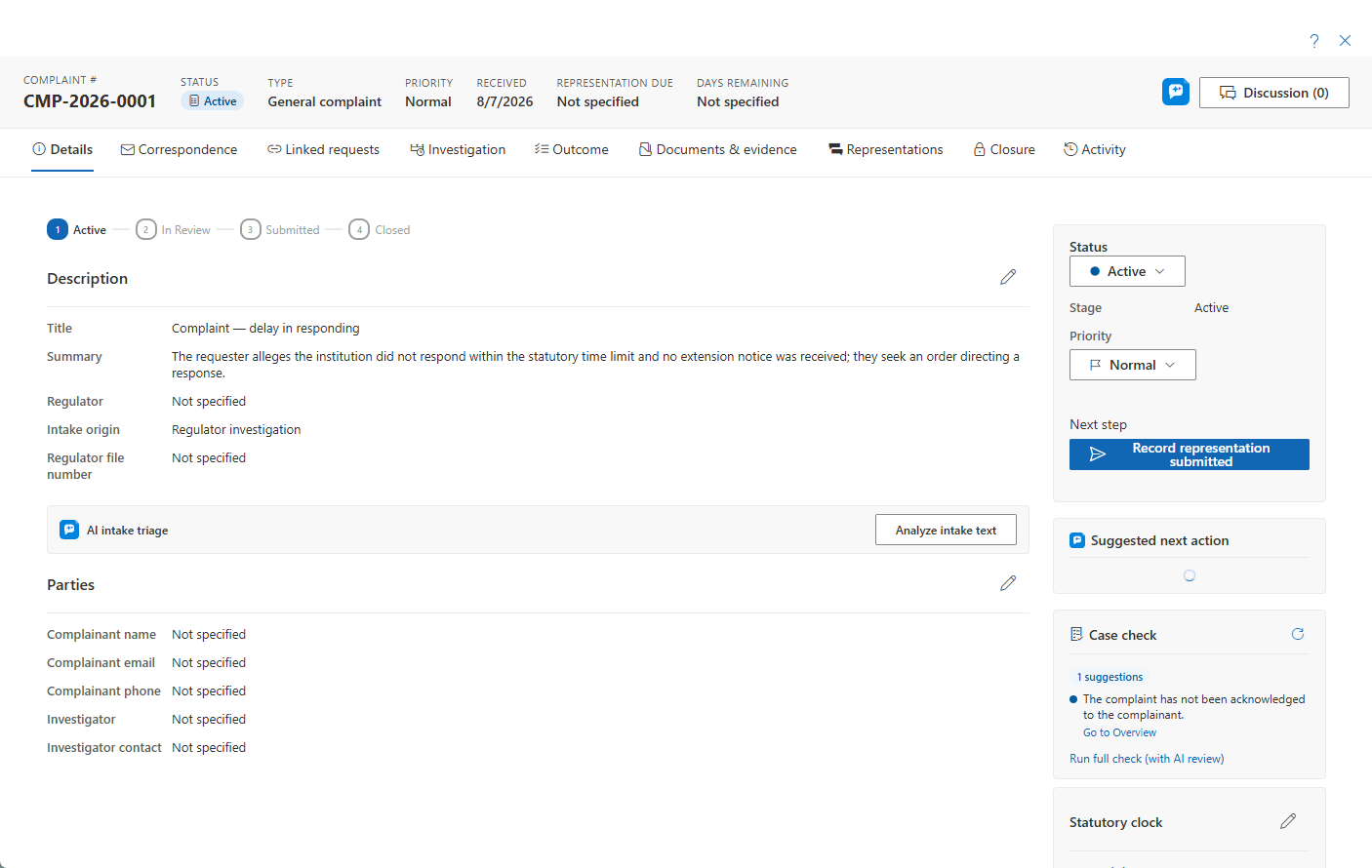
The complaint detail panel is the full-screen workspace where ATIP and privacy coordinators work an external challenge from registration through to a guided close. It opens on the Overview tab and carries a header with the complaint number, status chip, type, priority, key dates, and a Discussion button anchored to the complaint. Each complaint carries its own statutory clock, an investigation workspace, a representations track, and a guided closure. Editing is done section by section — click the pencil, then Save or Discard.
The Tabs
| Tab | Purpose |
|---|---|
| Overview | Details, parties, statutory clock, status, priority, hours, assignment |
| Correspondence | The complaint's letter desk — send or log correspondence with the complainant or the regulator; purpose-typed letters stamp the complaint clocks |
| Linked requests | Link or unlink the contested request(s); open a linked request |
| Investigation | Workstreams (delegated evidence-gathering assignments and tasks) and a Timeline of investigation events |
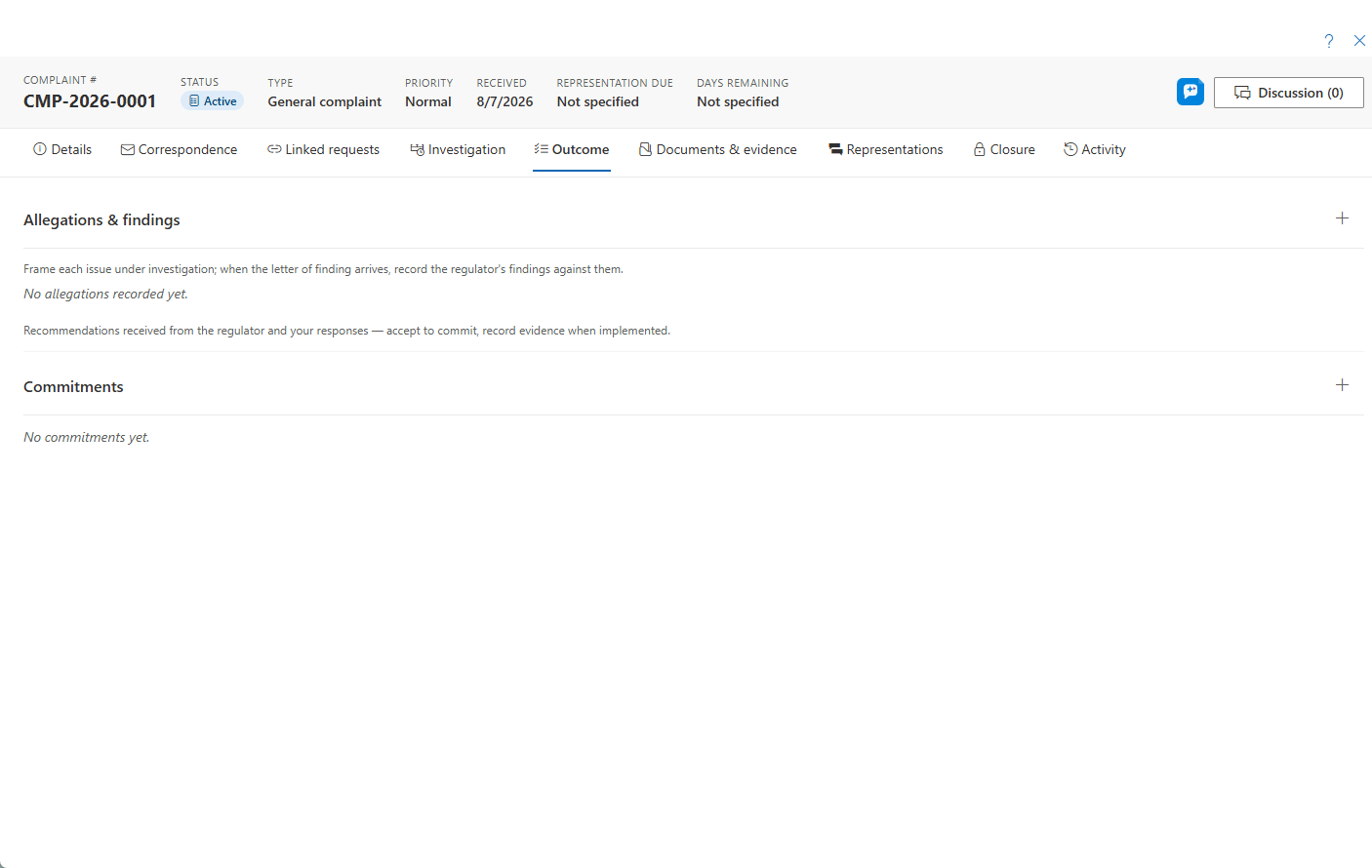
| Outcome | The complaint's allegations with per-allegation findings, the desired outcome, and recommendations tracked as commitments |
| Documents & evidence | Four sources: complaint-attached working documents, filed correspondence letters, generated report PDFs, and read-through linked-request records |
| Representations | The configurable review/sign-off stepper on the complaint |
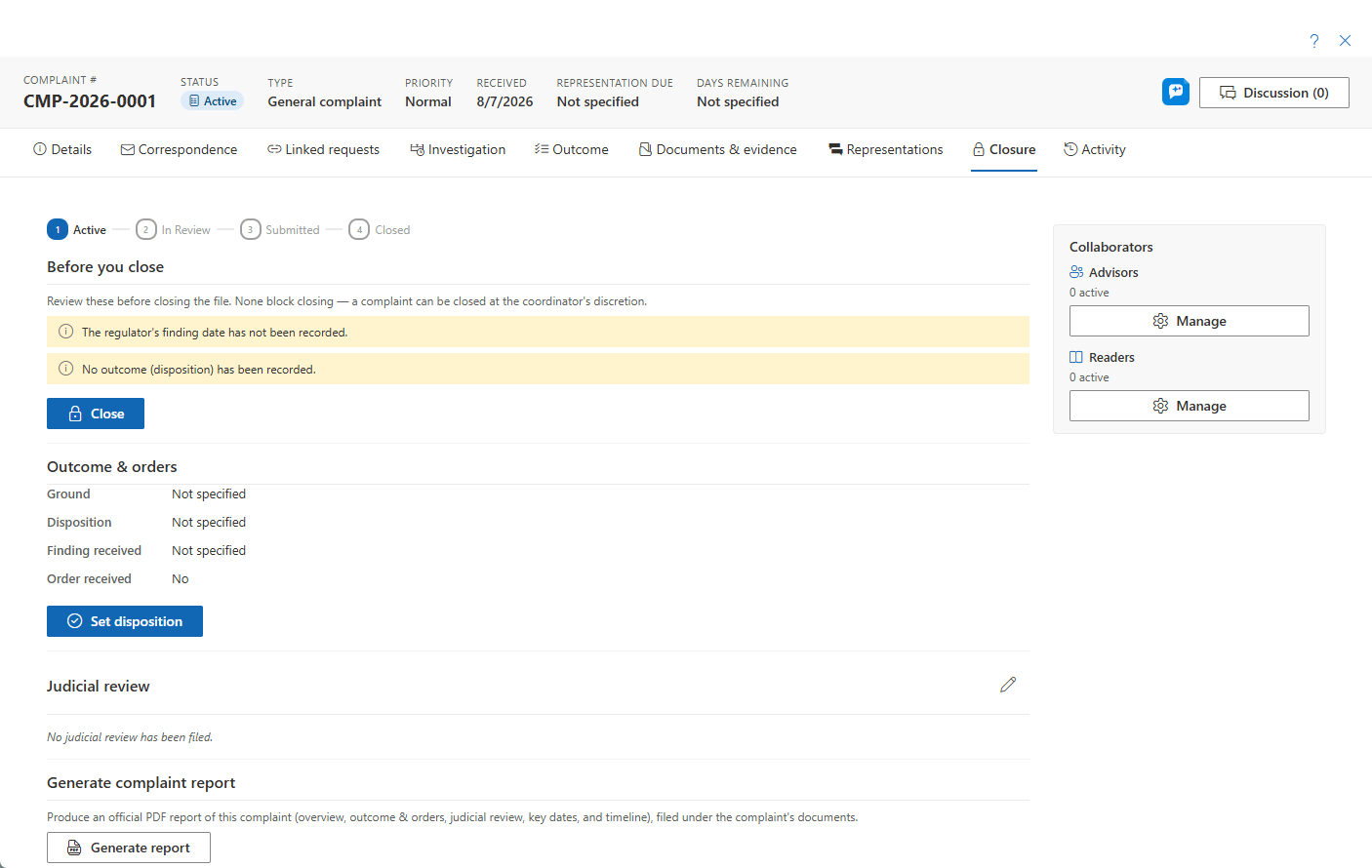
| Closure | Guided close — disposition, finding, reason, judicial review, order compliance, outcome and orders |
| Activity | The full audit and activity feed |
Correspondence sits beside Overview (writing to the parties is day-one work), and Documents & evidence comes before Representations (the evidence is assembled before it is signed off).
The Lifecycle Rail
The lifecycle rail shows progress through Active → In Review → Submitted → Closed (dates surface on hover). In Review is optional — it counts as reached only when a representation sign-off review actually ran. Submitted is shown skipped for direct-to-institution complaints that never go to a regulator.
Editing the Overview
Edit the Overview one section at a time:
- Details — title, summary, intake origin, and external number. The regulator is derived from the type and stays read-only. Priority is set from the sidebar Status card. Title and summary support optional per-language translations.
- Parties — complainant name, email, and phone, and the investigator name and contact.
The Statutory Clock
The Statutory clock card in the sidebar is where you edit the Received and Notified dates. The remaining dates — representation due, representation submitted, finding, and closed — are system-derived. The card also shows elapsed days and days remaining to the representation deadline.
Direct-lane clocks. For direct-to-institution complaints, the key-dates card additionally tracks Acknowledged on, Response due (computed from the complaint type's response target), and Response sent. These dates are normally stamped automatically by sending the matching letter from the Correspondence tab, and a draft response-due date is previewed as soon as the type policy allows one. An unacknowledged complaint past its acknowledgement deadline, or one whose response target has passed without a response, is flagged on the dashboard (the "Action due (direct)" posture card and a red response-due column) and surfaces as a My Day action for the owner.
Next-Step Actions
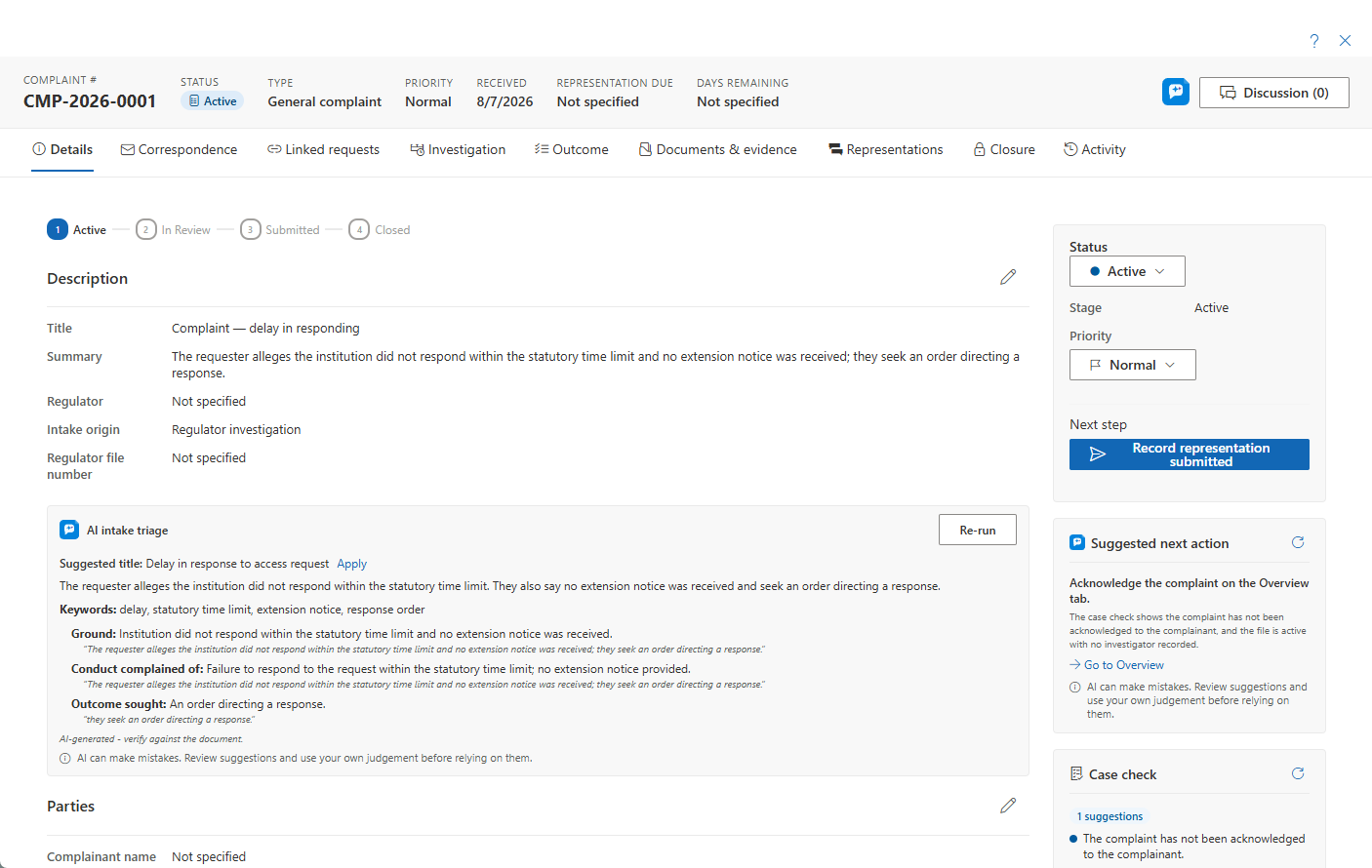
The sidebar Status card shows the current status and stage. When multiple statuses share the current stage you can quick-change between them from the dropdown; cross-stage movement uses the guided Next step button, which is action-driven:
- Record representation submitted — for regulator-investigation complaints in Active or In Review. This logs a milestone event, stamps the submitted date, and auto-advances the stage to Submitted. You supply the submission date and an optional note.
- Close complaint — jumps to the Closure tab. It appears once a representation is submitted, or immediately for direct-to-institution complaints.
The sidebar also holds the Hours card, the Assigned owner picker, and cards for linked entities and reference links. Custom fields configured for complaints appear in the main column.
Outcome — Allegations, Findings and Recommendations
The Outcome tab is where the substance of the complaint is decided:
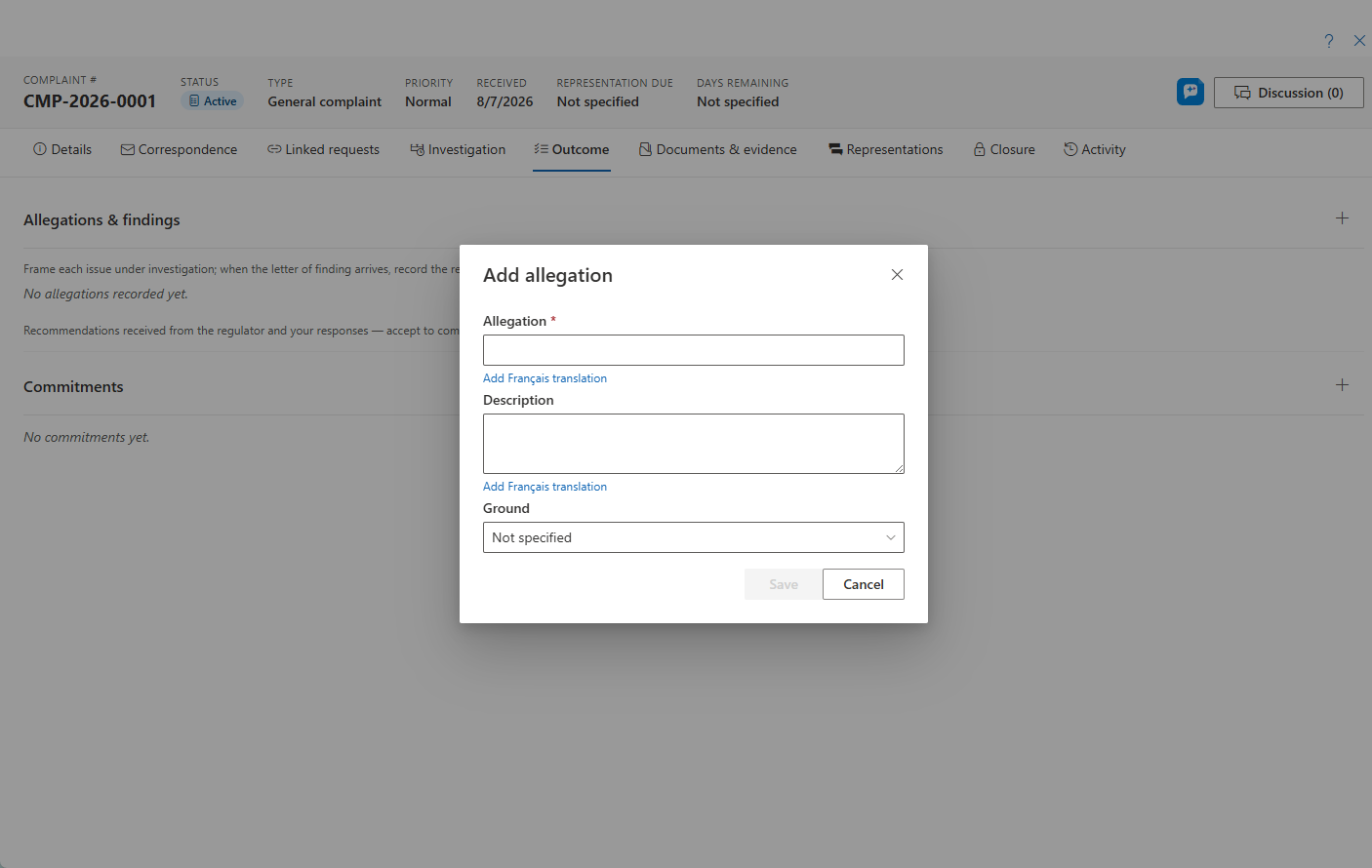
- Allegations — each allegation appears as a card with its ground, status, and finding; clicking a card opens the full read view (with an Edit button inside). Add or edit allegations at any time; an allegation can be marked Withdrawn (the complainant dropped it) or Out of scope (not a matter this complaint can decide) — there is deliberately no delete, so screened-out issues stay on the record. Withdrawn and out-of-scope allegations are excluded from findings analytics. The allegation text, description, and finding notes support optional per-language translations, and the complaint report prints them in the report's language.
- Record findings — a bulk dialog sets the finding for every open allegation in one pass, using the type's finding vocabulary (for example well-founded / not well-founded). Choose the finding source — Institution (your own review decided it, typical for direct complaints) or Regulator (the oversight body's determination). Recording the first finding stamps the complaint's finding date, and a regulator round writes a single "finding received" event to the timeline.
- Desired outcome — the complainant's requested remedy, editable here.
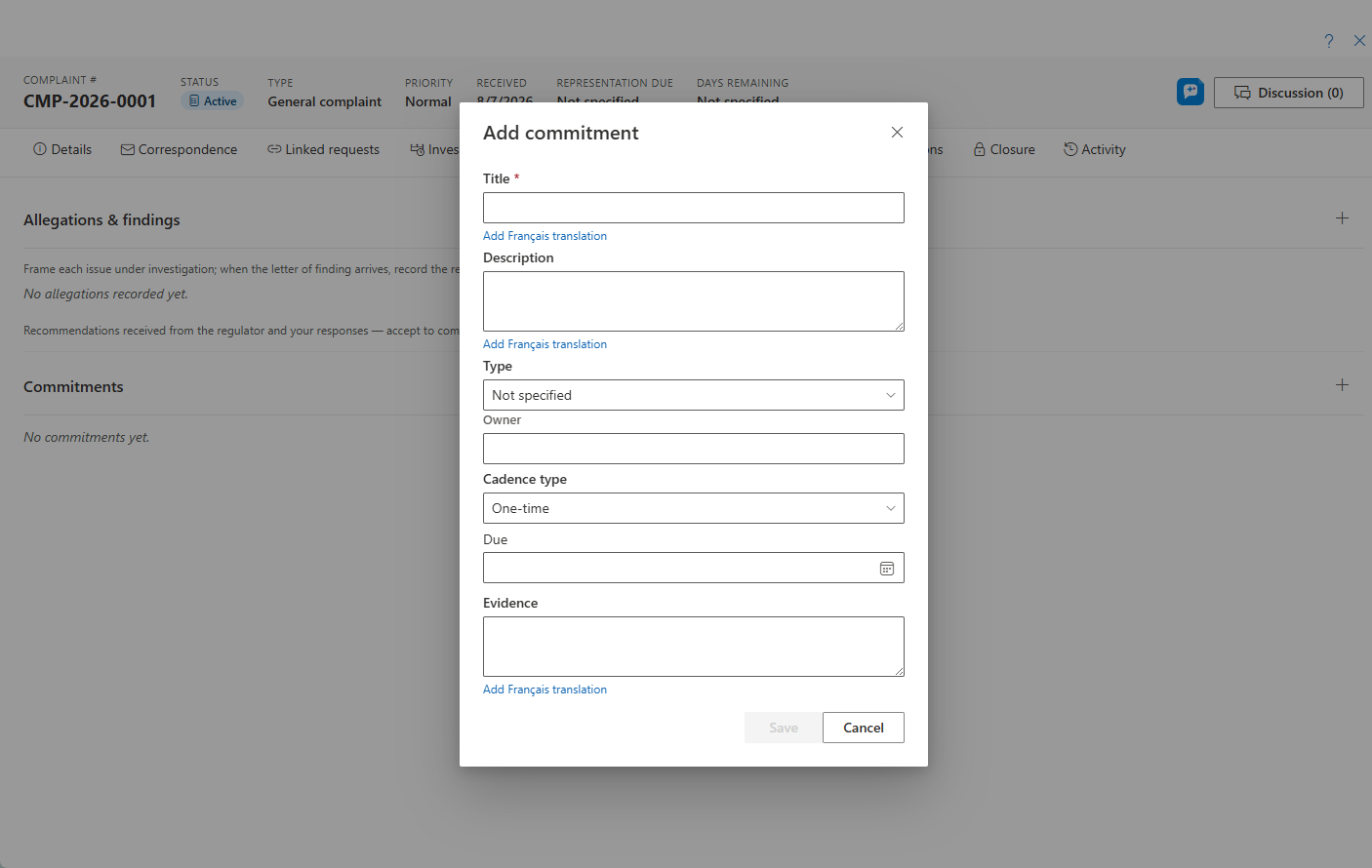
- Recommendations — regulator (or internal) recommendations are tracked as commitments anchored on the complaint, optionally linked to the specific allegation they respond to. They use the same commitments engine as assessments — owner, due date, status, evidence — so open recommendations roll up on the closure readiness card, the analytics KPI, and the commitments register.
Correspondence
The Correspondence tab is the complaint's letter desk, working exactly like the request's Requestor correspondence — two buttons, each with a Correspondence with selector (complainant or regulator) inside:
- Send email… — the composer: pick a purpose-typed template (merged in your language), edit the subject and body, attach complaint documents, choose the sending mailbox, and send — or generate the letter as a PDF instead of sending. Complainant letters go to the complainant's email on file (no email → generate-only); regulator letters go to an address you type. Privacy firewall: complainant-identifying tokens (name, desired outcome) are automatically blanked in regulator-lane letters — the two lanes use separate token sets by design.
- Log correspondence — captures correspondence that happened outside AccessPoint, with the same four modes as the request panel: attach from my mailbox (browse Outlook and capture the email as a PDF, with its attachments), attach a file, generate a letter (template + letterhead), or notes only. Direction, channel, date, and a purpose can be recorded; the captured files land under Documents & evidence → Correspondence.
Purpose-typed letters drive the complaint clocks automatically whether sent, generated, or logged as sent: an acknowledgement stamps Acknowledged on; a representation stamps Representation submitted and auto-advances the stage; a response stamps Response sent; a recommendation response logs a timeline note. Acknowledgement templates can include the allegations list token so the letter restates what was alleged. Follow-up flags on logged entries surface on My Day.
Investigation and Representations
- Investigation → Workstreams lets coordinators delegate evidence-gathering as custodian assignments with contributor tasks grouped underneath. Assignees work from sanitized instructions. Timeline is the chronological log of investigation events.
- Representations is the sequential review/approval engine used to obtain internal sign-off on the institution's representation before it goes to the regulator.
- Documents & evidence toggles between four sources: complaint-attached working documents, Correspondence (the letters sent, generated, or captured from the Correspondence tab, filed as PDFs), the generated complaint-report PDFs, and a read-through view of the linked request's records. The complaint report includes the overview and clocks, a findings-by-allegation table, the recommendations table (title, status, due date, evidence), the desired outcome, and the event timeline — in the viewer's language.
Closing a Complaint
The Closure tab is a guided experience. A readiness card surfaces advisory signals — including allegations still without a finding, open recommendations, an unsent response, and an outstanding acknowledgement on direct complaints — then a single Close dialog captures the disposition (from the type's disposition vocabulary — for example well-founded, not well-founded, resolved), the finding date, and a closing reason together. Below the close action are cards for judicial review, order compliance, and the embedded outcome & orders section for complaint types that support regulator orders. A Collaborators card lets you share the closure with advisors and readers.
Reopening a Closed Complaint
Once closed, the Overview tab shows a closed banner. Users with the manage permission can Reopen through a confirmation dialog that records a mandatory reason to the activity log. Every change is refetched, re-badged, and written to the Activity feed.
AI Assist
When AI Assist is enabled, several optional aids appear on the complaint. Each produces a suggestion, an editable draft, or a display of computed facts — a person always decides what to keep.
- AI intake triage — a card that reads the complaint's intake text already on the record and suggests a title, a plain summary, key topics, findings with the verbatim passages they came from, and clarification questions worth asking. Nothing is applied without a click — every result is a suggestion, and a person decides what to keep.
- Suggested next action and Case check — sidebar cards also available on complaints. Suggested next action proposes the single most useful next step with a one-sentence rationale grounded in the complaint's own facts; Case check lists what a quality reviewer would flag, from deterministic rules that run on every tenant plus optional AI consistency observations, and feeds the tenant-wide Case hygiene report.
- How similar cases went — a display-only card showing computed outcome facts from similar closed complaints of the same type — dispositions, findings, and recommendations. It reports what happened; it never recommends.
AI Assist runs in your own Azure tenant. Microsoft does not train its models on your data, and prompt and response content is not stored.
Privacy by Design
Staff you delegate investigation work to never see the complainant's identity. Investigation instructions are sanitized, so the PII firewall holds even while evidence-gathering is delegated.