
Roles and permissions — system and tenant roles built from scoped permission grants
Last updated: August 09, 2026 by Steve
Roles and Permissions
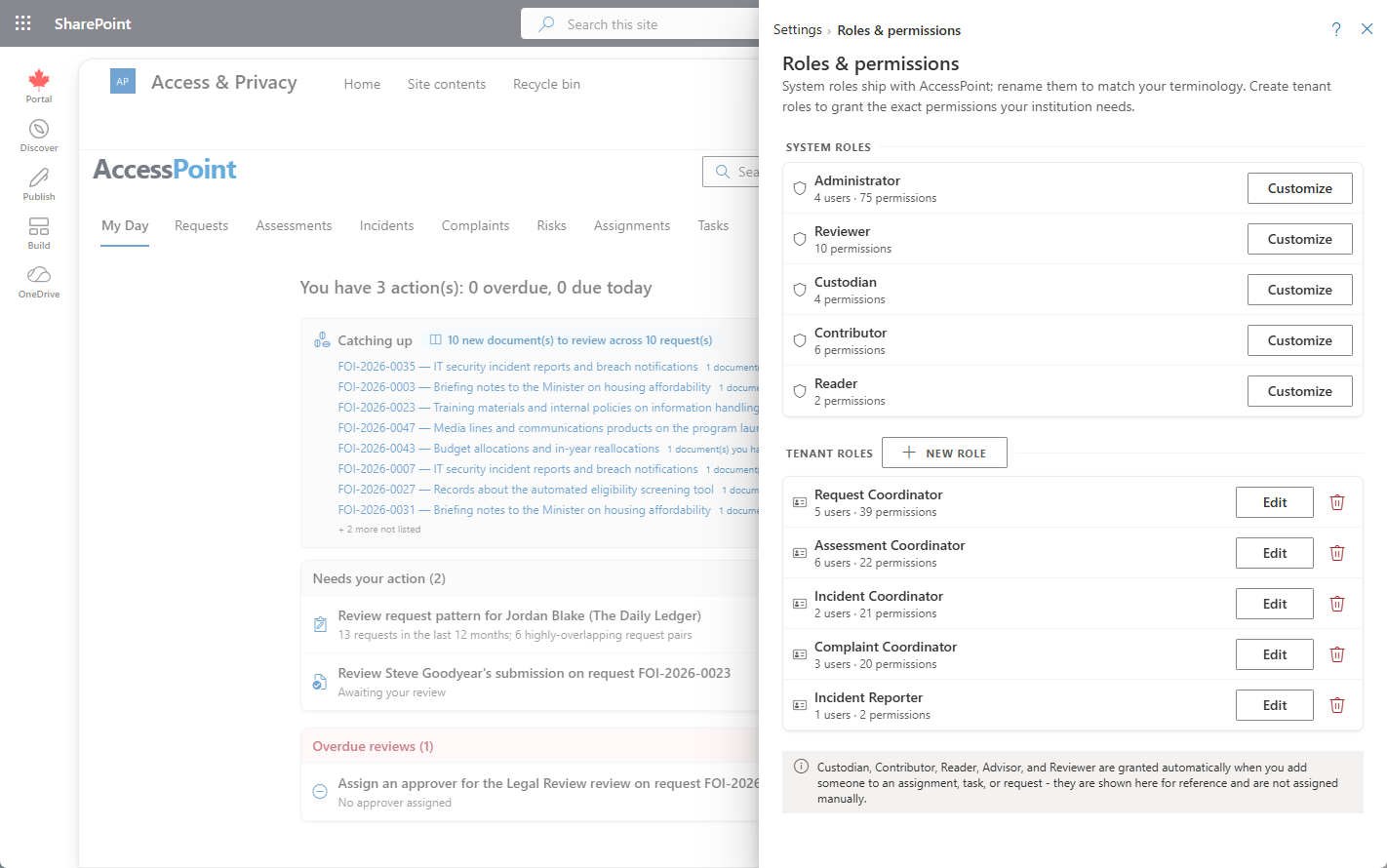
AccessPoint uses granular, tenant-configurable permissions rather than fixed job titles. On this page you build the roles your office uses — Coordinator, Reviewer, and so on — by granting individual permissions from a categorized catalog. This page defines what each role can do; assigning roles to people happens on Manage Users.
Where to Find It
Open Settings from the app toolbar and choose Roles & permissions in the Users & access group.
System Roles vs. Tenant Roles
- Administrator is the only built-in system role.
- Every other role — all coordinator-style roles — is defined by you. They are typically seeded from a jurisdiction pack and customized afterward.
Roles also come in two kinds, and the difference decides where they are granted:
- Assigned roles — Administrator and your tenant's own roles. An administrator grants these in Manage Users, optionally with an expiry date, which is useful for contractors and client users.
- Relationship roles — Custodian, Contributor, Reviewer, Advisor, and Reader. These are conferred automatically when someone is added to an assignment, a task, a review, or a case. They cannot be assigned in Manage Users.
Most offices work with roles matching these archetypes:
| Role | Kind | What you do |
|---|---|---|
| Request Coordinator | Assigned | Manage the full lifecycle of access requests — create requests, assign work, review submissions, and deliver responses. |
| Custodian | Relationship | Collect and submit documents for specific assignments. |
| Contributor | Relationship | Complete specific tasks within an assignment. |
| Reviewer | Relationship | Review completed work and approve or request changes before the response is sent. |
| Advisor | Relationship | Consult on a case — read-only access plus the ability to view and flag redactions for discussion. |
| Reader | Relationship | View the details of a record you have been added to, on a read-only basis. |
| Administrator | Assigned (built-in) | Configure the system — manage users, set up request types, define workflows, and maintain system settings. |
Your tenant's assigned-role names may differ from the archetypes above, but the permission behaviour is the same.
Privacy note: Custodians, Contributors, Advisors, and Readers work from sanitized content. The PII firewall strips the requestor's personal information out before it reaches them.
Building a Role
| Element | Details |
|---|---|
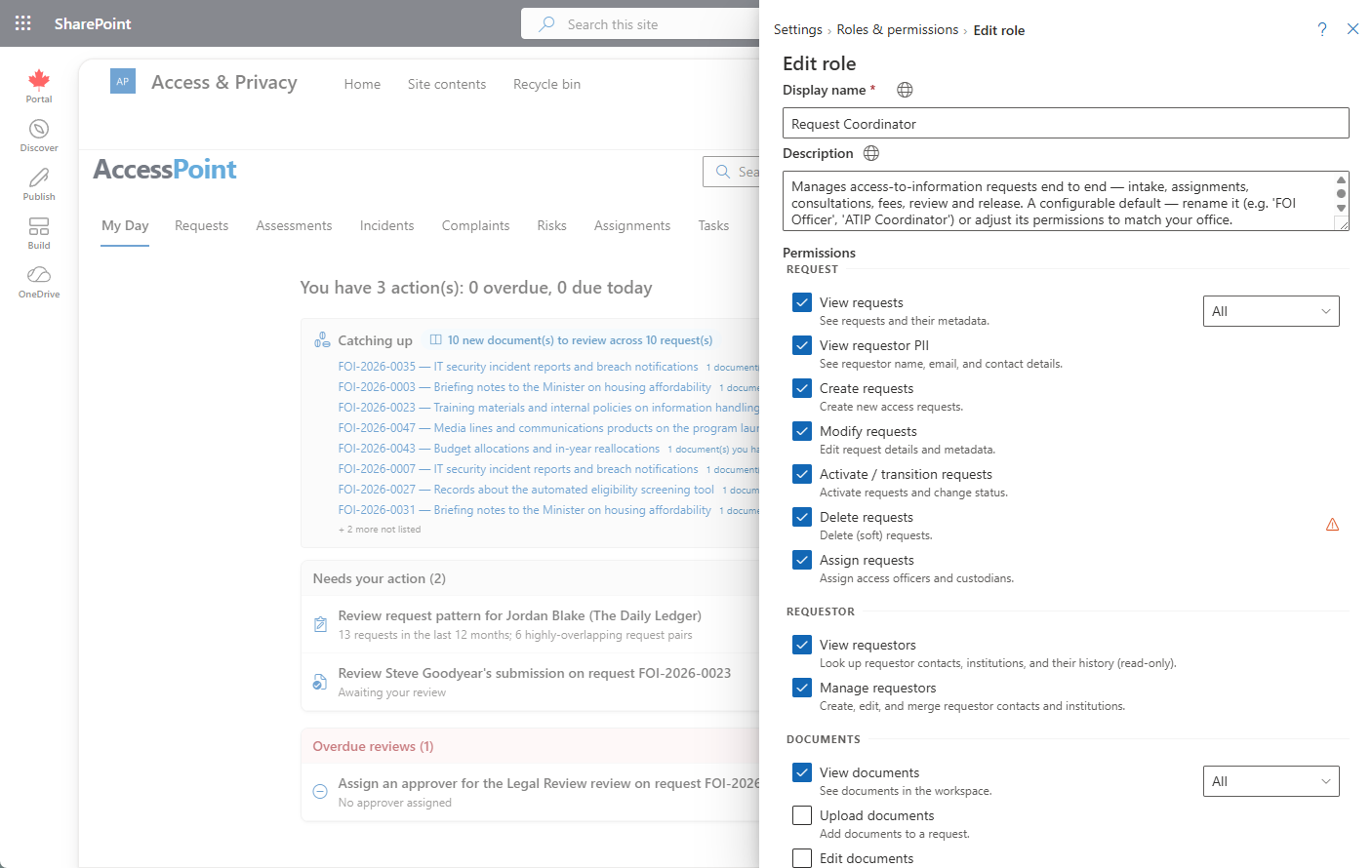
| Name and description | Both are translatable, so the role reads correctly in each of your tenant's active languages. |
| Permission grants | Grant individual permissions from a categorized permission catalog. |
| Scope | Each grant can be Global or scoped. |
Case-Matched (Dynamic) Roles
A role can also be created as case-matched: its permissions apply only to the cases that match a rule you define. A rule can key on:
- a single-select custom field value — "Customer is Acme";
- a case type;
- a lifecycle stage — "all Closed requests".
Matching cases appear in the member's dashboards and open according to the permissions the role grants; everything else stays invisible. Before you save, the editor shows a live "currently matches N cases" count, so you can see the reach of a rule while you write it.
Rules only add access — they never remove it. A case-matched rule cannot take away access a member already holds through another role. Check a member's other roles before assuming the rule is what bounds them.
Typical uses:
- A service provider giving each client organization access to exactly its own cases.
- Junior staff who edit their own cases but can read the whole closed corpus for reference.
- A team granted access to a single case type.
If your case-matched members are guest users, remember that a guest should never also hold a standing global-view role. The rule bounds what AccessPoint shows them — not what a careless separate grant would.
Reporting for Case-Matched Members
Grant the permission Build reports on matching cases and the member gets the report builder, saved reports, and Ask AccessPoint over only the cases their rule matches — including exports and pinned tiles. Requestor PII fields are never offered to them, and they see only their own saved reports, not the team's shared ones.
Two things stay tenant-wide and are therefore not available to them: the ready-made report sections in the Reports panel, which are fixed organization-wide figures, and My Day and notifications.
The additive warning applies with force here. If the same person also holds an ordinary reporting permission through another role, that permission is not rule-bound and they will see whole-organization figures.
Senior Official (Accountable Owner)
Each case can name a senior official — the person accountable for the decisions taken on it, as distinct from the coordinator who does the work.
Naming someone gives them access to that case only. They can read it, see the requestor, open documents, and act on reviews, but they cannot edit or delete it. That is deliberate: it lets you make someone accountable for a single case — including an external adviser who is a guest in your tenant — without granting a role that would show them everything.
Cases they are accountable for that go overdue appear on their My Day, so oversight does not depend on somebody remembering to tell them.
Who can be named is controlled by the Act as senior official permission, which by itself grants no access to anything.
Permissions in Practice
Permissions gate what users see and do throughout the product. Examples that appear elsewhere in this documentation:
- View requestor PII — requestor names, emails, and other personal information are visible only to roles that carry this permission; custodians and contributors work from sanitized instructions without it.
- Act as senior official — controls who can be named as the accountable owner of a case. On its own it grants no access to anything.
- Build reports on matching cases — gives the members of a case-matched role reporting over their matching cases only.
- RequestorManage — required to edit requestor contacts and institutions.
- ConfigurationManage — lets a user share saved views tenant-wide and manage shared views.
*.configurepermissions — some Settings groups (review workflows, privacy incident/assessment/complaint configuration) only appear when you hold the matching configure permission.
Roles and User Assignment
Roles do nothing until they are assigned. Use Manage Users to assign or remove roles per user. A user can hold more than one role — permissions are additive — and a last-admin guard prevents removing the final administrator, so you can never lock yourself out.