
Controls library — the shared privacy, security, and organizational control catalogue (ITSG-33 / NIST 800-53) used in Security assessments and privacy subject controls, pack-seeded and tenant-extensible
Last updated: August 06, 2026 by Steve
Security Controls
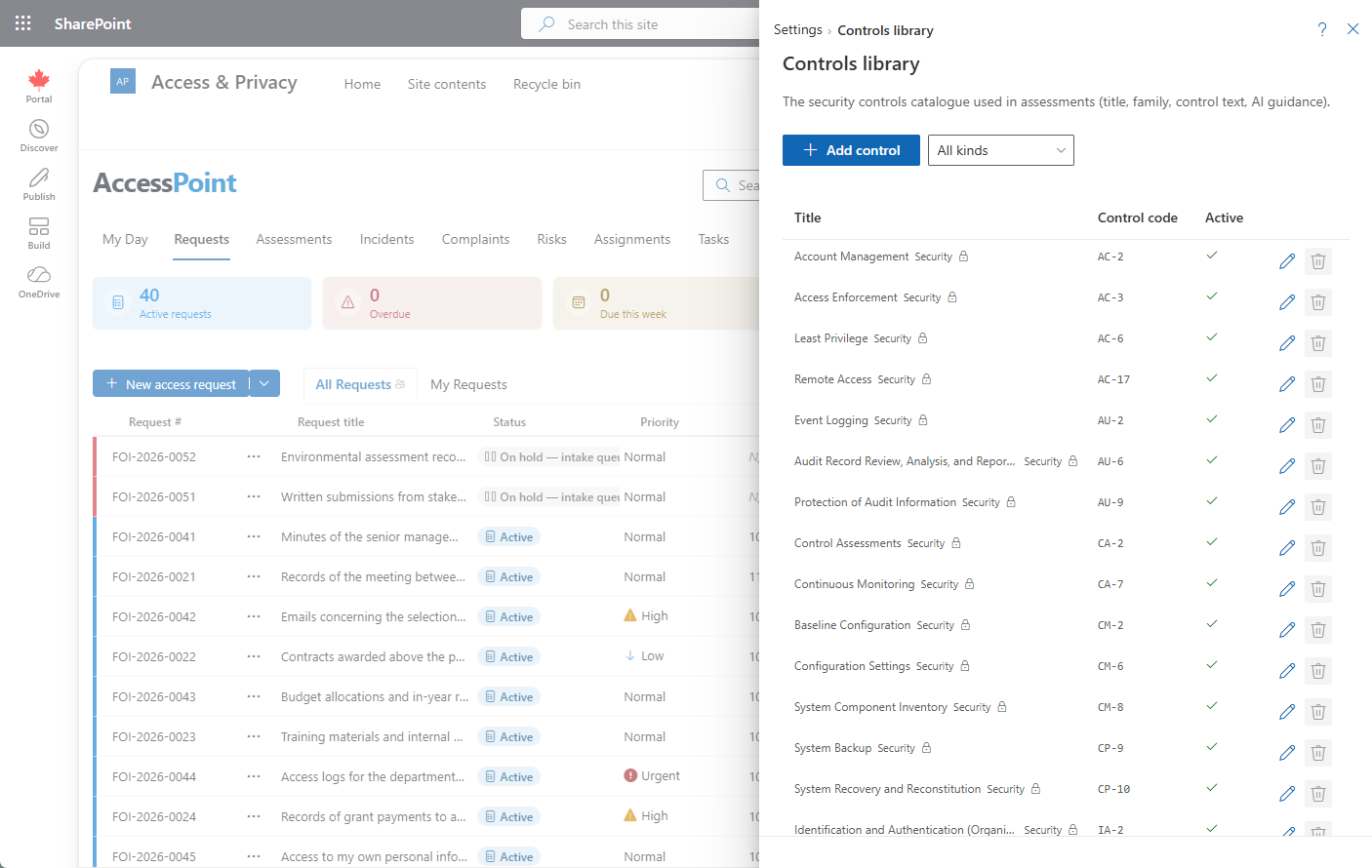
The Controls library (labelled Security controls in earlier releases) is the shared catalogue of controls your tenant draws on wherever a control is selected — the ITSG-33 / NIST 800-53 set your Security (SA&A) assessments build a System Security Plan (SSP) from, and, via each control's kind, the same catalogue now backs the Controls section on a privacy subject's detail panel too. It is pre-seeded by jurisdiction packs and extensible, so assessors and privacy analysts alike select and implement controls from one catalogue rather than typing them out each time.
This catalogue feeds Security assessments (the SA&A / Authority-to-Operate workflow) and privacy subject controls. It is separate from the exemptions used when redacting documents.
Where to Find It
Open Settings from the app toolbar and choose Controls library in the Privacy configuration group. This group is visible only to users who hold the relevant privacy configure permission.
A Control
Each catalogue entry describes one control:
| Field | What it holds |
|---|---|
| Catalog code | The catalogue the control belongs to (for example, ITSG-33 or NIST 800-53). |
| Family | The control family (for example, AC — Access Control, AU — Audit & Accountability). |
| Control code | The control's identifier within the catalogue (for example, AC-2). |
| Title | The control's name. |
| Control text | The control statement itself. |
| Profiles | The control profiles the control belongs to (for example, PBMM) — profile membership is what drives which controls a Security assessment spawns. |
| Control kind | Whether the control is a Privacy, Security, or Organizational measure. Security is the default for existing rows; setting the kind is what lets a control show up as a privacy or organizational measure on a subject's Controls section, not only in Security assessments. |
| Reference framework | An optional citation to the external standard the control implements — for example GDPR Art. 32 or ISO 27002 8.24 — shown alongside the catalog and control code. |
| Enhancement | Marks a control enhancement (a sub-control) rather than a base control. |
| Enabled | Only enabled controls are offered when building an assessment. |
Profiles Drive the SSP
A Security assessment is categorized (for example, to the PBMM profile), and that categorization determines which controls are pulled from this catalogue into the assessment's System Security Plan. Maintaining accurate profile membership here is what makes the SSP spawn the right control set automatically. See Assessment types and Assessment templates for how the Security engine is configured, and the GC Security Controls Reference for the ITSG-33 mapping.
Seeded by Jurisdiction Packs, Extensible by You
The shipped catalogue is pack-seeded (its provenance is recorded on each control), and you can add your own controls or enhancements for frameworks the packs don't cover. When the optional AI Assist component is deployed, a control's guidance text can also ground assessment answer suggestions — but the catalogue is useful on its own, with or without AI.
Backing Privacy Subject Controls
A privacy subject's Controls section links controls straight from this library, so the same governed catalogue names your privacy and organizational measures, not only your SA&A control set. Each link on a subject carries its own designation — Mandatory, Recommended, Implemented, or Not applicable (with a justification) — independent of the control's Enabled flag here. A subject with a Mandatory control that isn't yet Implemented shows a warning gap chip in its header, and Implemented/Mandatory links render in the subject's ROPA export under its security-measures row.
Because a control can be linked to one or more subjects this way, a control cannot be deleted while it is still linked to a subject — disable it, or unlink it from every subject first, then delete.
Managing Controls
- Add — Click Add control, choose the catalogue and family, enter the control code, title, and control text, set profile membership and control kind, optionally cite a reference framework, and save.
- Edit — Open a control to update its text or profile membership.
- Enable / disable — Disable a control to remove it from assessment selection without deleting it.