
Registering a complaint or appeal — kind-aware type, intake origin, admissibility hint, allegations, desired outcome, parties, statutory dates, and an optional request link
Last updated: July 23, 2026 by Steve
Creating Complaints
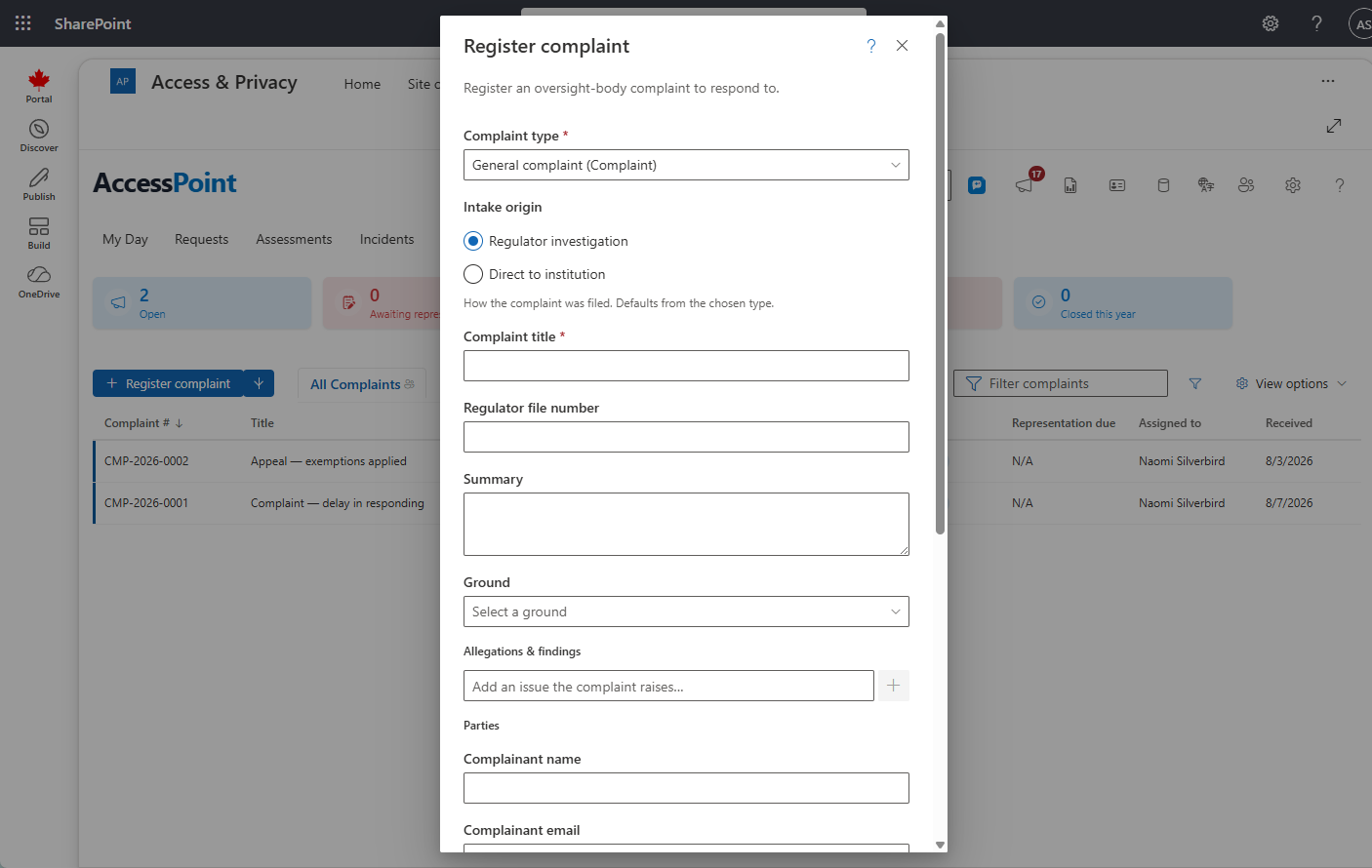
The Complaints & Appeals area tracks external challenges to how your institution handled an access or privacy matter — a complaint filed with an oversight body, or a statutory appeal of a decision. AccessPoint treats complaint and appeal as two "kinds" of the same record; the kind comes from the complaint type you pick at intake, and the panel wording adapts to it. A complaint can stand on its own or be linked to the request it contests. Open the intake dialog from the Complaints dashboard. The Register complaint button is a split button: its Register from email… option opens the same mailbox picker as the request New from email flow — pick the complaint email from your own or an intake mailbox and the form is pre-seeded (title from the subject, summary from the body, complainant from the sender, received date), with the source email filed on the new complaint as its first document. The form is help-enabled, so the ? icon opens this guidance.
Registering a Complaint or Appeal
- Complaint type (required) — pick the type. Each option is tagged (Complaint) or (Appeal). Your choice drives everything below, including the read-only Regulator / governing authority shown beneath the dropdown, the filing-window rule, and the grounds catalogue.
- Intake origin — choose Regulator investigation (the oversight body is investigating) or Direct to institution (the matter came straight to you). The type suggests a default, but you can override it. The origin determines whether the complaint later passes through a Submitted stage; a short hint explains the difference.
- Admissibility hint — if the type defines a filing window, a banner tells you whether the complaint is in time against the computed deadline (calculated from the notified date, or the received date if none). This is advisory only and never blocks you from registering.
- Title (required), an optional External complaint / file number (the regulator's reference), and a Summary.
- Ground — if the type has a grounds catalogue, select the subject-matter ground of the complaint.
- Allegations (optional) — break the complaint into its individual allegations right at intake: type each allegation and click add (anything still typed in the box when you register is captured too). Each allegation can carry its own ground, and findings are later recorded per allegation on the Outcome tab. You can also add allegations any time after registration.
- Desired outcome (optional) — what the complainant is asking for, in their words. It appears on the Outcome tab and in the complaint report.
- Parties — capture the complainant name, email, and the assigned investigator name. The investigator may be the oversight body's.
- Received on and Notified on dates, both capped at today.
- Primary request link (optional) — search the request register (type-ahead, top matches) and link the contested request. Standalone complaints are fully supported; you can link or change requests later.
Click Register complaint / Register appeal. The complaint is created in the Active stage and opens in the detail panel. If you close the dialog with unsaved entries, a guard asks you to confirm.
Kind-Aware Wording
The complaint type you pick determines the kind of record. When you choose an appeal-kind type, the panel wording flips automatically — for example, the title and received-date labels — but the workflow is identical to a complaint. The type also carries the governing authority (the regulator office), the filing-window rule, and the grounds catalogue, so choosing the right type sets up the rest of the record.
Privacy by Design
Staff you later delegate investigation work to — custodians and contributors — never see the complainant's identity. Instructions are sanitized, and the create dialogs remind you of this firewall.