Privacy subject detail — identity, records of processing (GDPR Art.30 ROPA), linked processors/vendors, controls, the AI/ADM system register, compliance profile, incident escalation, and the subject's assessment and incident history
Last updated: August 06, 2026 by Steve
Privacy Subject Details
A privacy subject is the durable, reusable thing your office assesses — a program, system, initiative, data-sharing arrangement, process change, or technology adoption — and it is shared across every assessment and incident that touches it. The subject detail panel is where you maintain the subject's identity and its GDPR Article 30 Record of Processing Activities (ROPA), link its controls and (where applicable) its AI/ADM register, track its compliance profile, and review its assessment and incident history. The panel is fully editable when you open it from the Privacy subjects & controls directory and read-only when you drill into it from an assessment. It has eight tabs, in order: Details, Processors / vendors, Controls, AI/ADM system register (subjects whose type is ADM-flagged only), Compliance profile, Incident escalation, Assessment history, and Incident history.
Opening a Subject
Open a subject from the Privacy subjects & controls directory (click a card) to edit it, or click the subject name inside an assessment to drill in read-only. Because subjects are shared, durable records, they are always edited from the directory — you cannot rename or re-key a subject from inside a single assessment.
The Identity Block
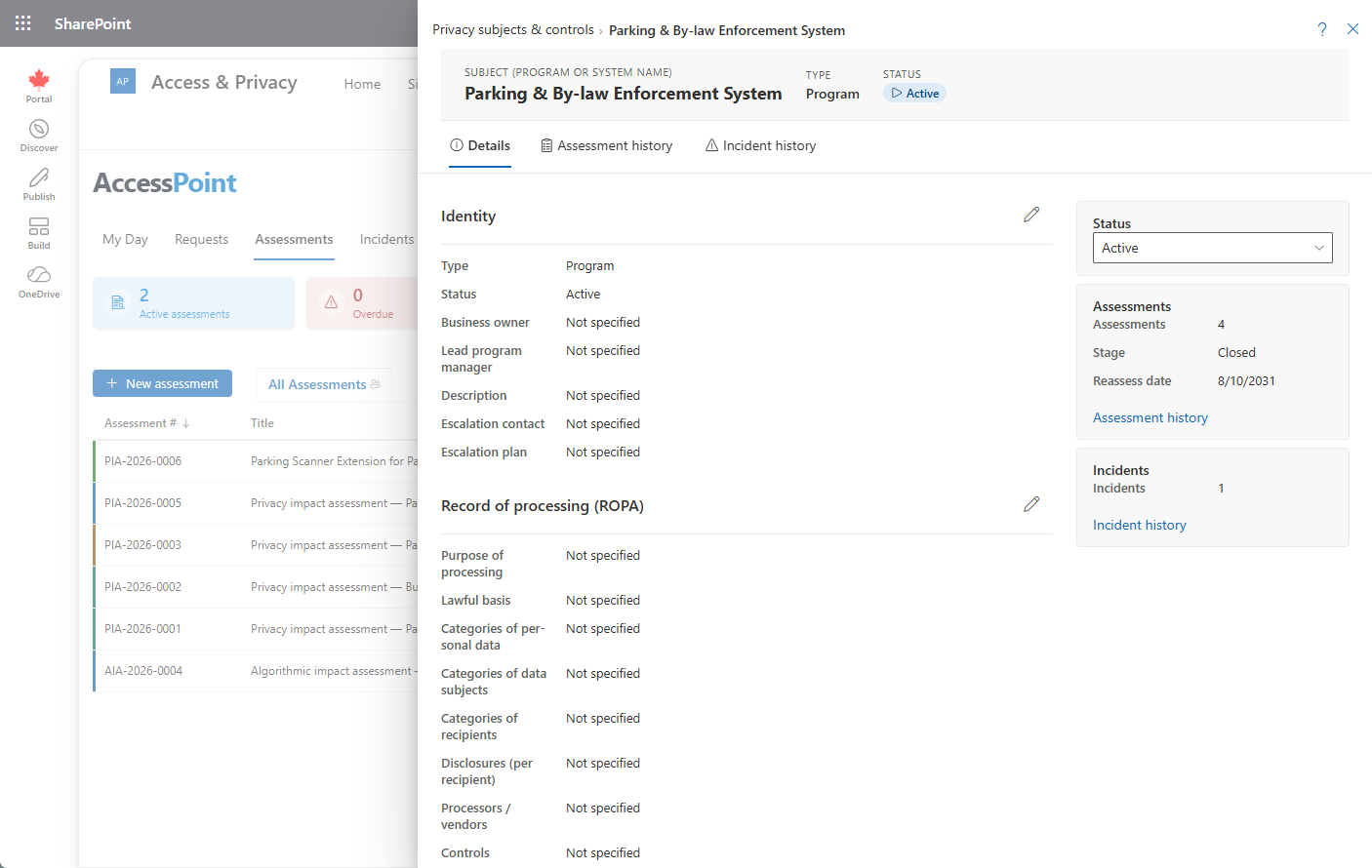
The Details tab opens with two per-section editable blocks, each with its own pencil. The first is Identity, which records:
- Name
- Type — Program, System, Initiative, Data-sharing arrangement, Process change, or Technology adoption
- Status — the subject's own status
- Business owner
- Lead program manager
- Description
Free-text fields support optional per-language translations. The sidebar carries a quick status picker and roll-up cards summarizing the subject's assessments and incidents.
Records of Processing (ROPA)
The second block on the Details tab is the Records of processing (ROPA) record for GDPR Article 30. It captures:
- Processing purpose — why the personal data is processed.
- Lawful basis — the legal basis relied on for the processing.
- Categories of personal data — the types of personal data involved.
- Categories of data subjects — the groups of people the data concerns.
- Recipient categories — who the data is disclosed to, with a per-recipient disclosures register.
- Processors / vendors — the actual processors behind the activity, linked from the vendor register (see below).
- Retention period — how long the data is kept.
- Security measures — the safeguards protecting the data.
- Hosting location — where the data is hosted.
- International transfer — a flag that, when set, reveals a transfer safeguards field describing the protections for cross-border transfers.
The categories of personal data, categories of data subjects, and recipient categories lists are configurable taxonomies drawn from Settings. Free-text fields support optional per-language translations.
Processors / Vendors
The Processors / vendors tab links vendors from the Vendor register to name the actual processors behind this processing activity. Each link can carry its own role in this processing (processor, sub-processor, controller, joint controller, or service provider — hover any role for its definition) or inherit the vendor's register role, plus an optional note. Linked vendors render as "Name — role" lines here and in the ROPA export, so the Article 30 register names real processors per activity rather than only categories.
Controls
The Controls tab links controls from the shared Controls library (Settings → Controls library — privacy, security, and organizational measures, pack-seeded) to this subject. Each link carries its own designation:
- Mandatory
- Recommended
- Implemented
- Not applicable — requires a justification for why it doesn't apply
A Mandatory control that isn't yet Implemented shows as a warning gap chip in the subject header, so an outstanding control is visible at a glance without opening the tab. Implemented and Mandatory links also render in the ROPA export's security-measures row, so the Article 30 register reflects real, linked safeguards rather than free text.
AI/ADM System Register
The AI/ADM system register tab appears only on subjects whose type is flagged as an automated decision-making (ADM) system. It captures:
- Technical owner and privacy owner
- Intended purpose
- AI model or service in use
- Deployment status
- Acquisition mode
- Human-involvement level
- Risk classification — a pack-seeded taxonomy: the generic four-tier set, plus statutory classes shipped by your jurisdiction packs
- A data-source inventory, with a contains-personal-information flag on each source
The approval date is derived, not typed in — it is always the latest In Effect assessment's approval date on this subject, so the register can never show an approval that doesn't trace back to an actual assessment.
Compliance Profile
The Compliance profile tab evaluates your jurisdiction packs' requirements against this subject automatically:
- A required assessment is Met once one is In Effect.
- A mandatory control is Met once it's linked as Implemented (see Controls, above).
- Documentation and notice items are checked off as you complete them, with an optional evidence document attached to each.
Requirements marked Before production show as such until the subject is deployed; once deployed, any that remain unmet become ordinary compliance gaps.
Incident Escalation
The Incident escalation tab records an optional escalation contact and a pre-agreed escalation plan for this subject. When an incident is linked to the subject, the plan surfaces automatically — as a banner on the open incident, and in the report-incident dialog at the moment the subject is selected — so responders see who to call without hunting for it. See Creating Incidents.
Assessment History
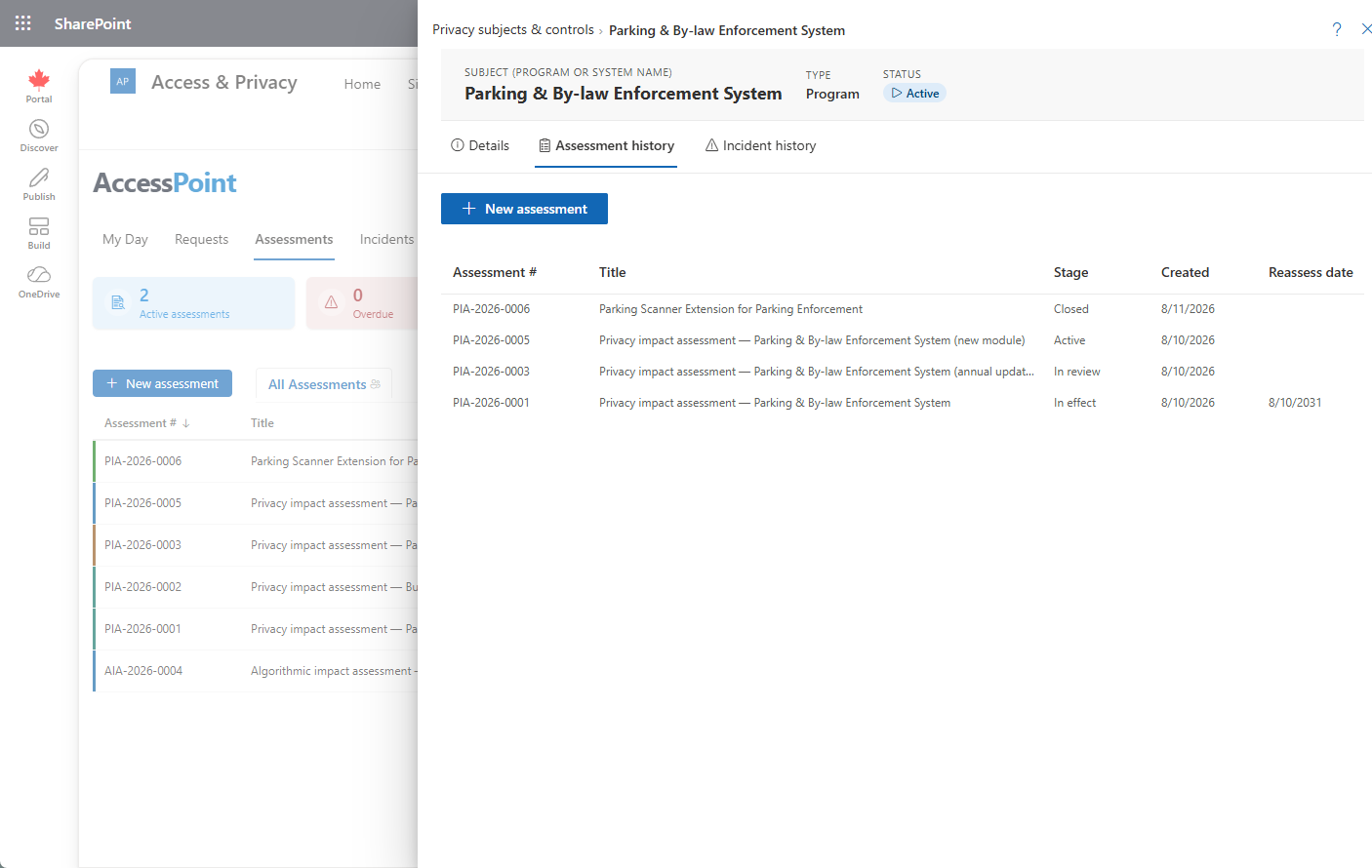
The Assessment history tab lists every assessment ever run on this subject. Use New assessment to launch a re-assessment on the same subject — the subject is pre-filled and locked on the create dialog. See Creating Assessments.
Incident History
The Incident history tab lists the incidents linked to this subject. Use Create incident (needs the incident-report permission) to open the report dialog with this subject already linked to the new incident. See Creating Incidents.