Composing correspondence — template library, merge fields, send/capture with the PII firewall
Last updated: July 30, 2026 by Steve
Sending Correspondence
The composer merges a template, lets you edit it, and sends the email through Microsoft 365 — recording both the sent message and a rendered copy in the request's correspondence log automatically. You reach it from a request's Requestor tab (Send correspondence, addressed to the requestor) or from a consultation's Correspondence sub-tab (Send notice…, addressed to a third party). The recipient lane is fixed by where you launched from — there is no lane picker.
Sending a Message
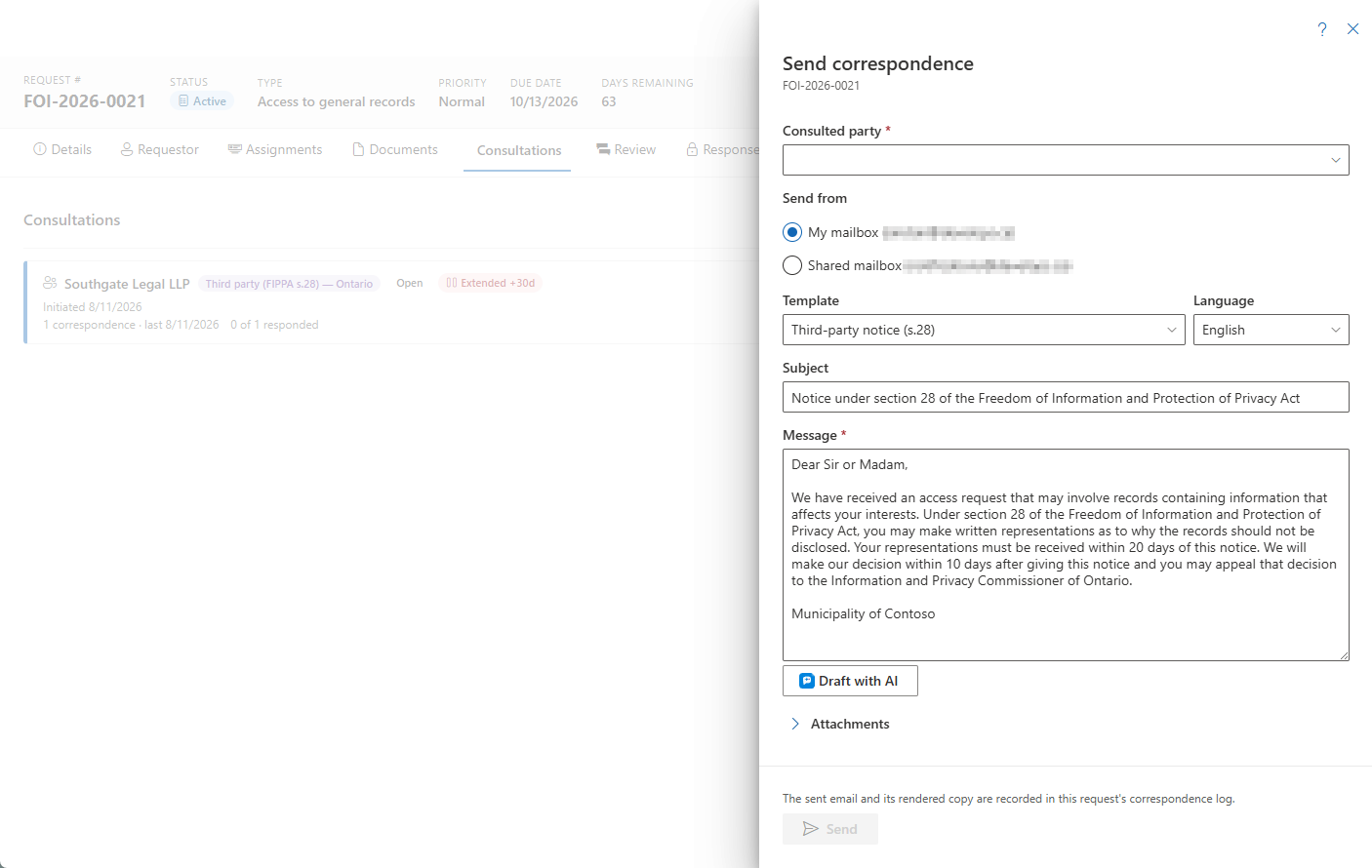
- Confirm the recipient. On the requestor lane the name and email show at the top (a warning appears if no email is on file). On the third-party lane, pick the consulted party from the dropdown — parties without an email are disabled as recipients.
- Choose Send from — your own mailbox (the default) or the tenant's shared mailbox. This choice appears only when a shared sender is configured; otherwise a line confirms the message is going from your mailbox.
- Pick a template (or start blank). Selecting one merges it, filling in the subject and body with the request's merge fields resolved. Choosing a party re-merges so party merge fields reflect that recipient.
- Optionally choose a letterhead or merge template for the rendered PDF copy.
- Edit the subject and message. Rich-formatting templates show their HTML source for editing.
- Add attachments. By default only submitted documents and working files are listed; use the search box, the type filter, or Show all document types to widen the set. A size meter warns when the selection exceeds the send ceiling (about 3.5 MB) — share large packages by link instead. Composer-generated correspondence can never be re-attached.
- Select Send.
Draft with AI
When AI Assist is enabled, a Draft with AI button appears in the composer. It drafts a letter to the requestor grounded strictly on the request's own facts — anything the record doesn't say arrives as a literal [VERIFY] marker rather than a guess, so you can fill in or confirm it. The draft lands in the message editor, where you review, edit, and save it like any other letter.
Nothing is ever sent or saved automatically — the draft is a starting point, and a person always decides what goes out. The PII firewall (below) and the template and merge-field behaviour are unchanged: whether you start from a template, from blank, or from an AI draft, the same firewall and validation run when you send.
Draft with AI is part of AI Assist, an optional capability. The button only appears when your organization has deployed AI Assist. If you don't see it, AI Assist isn't enabled for your tenant — ask your administrator.
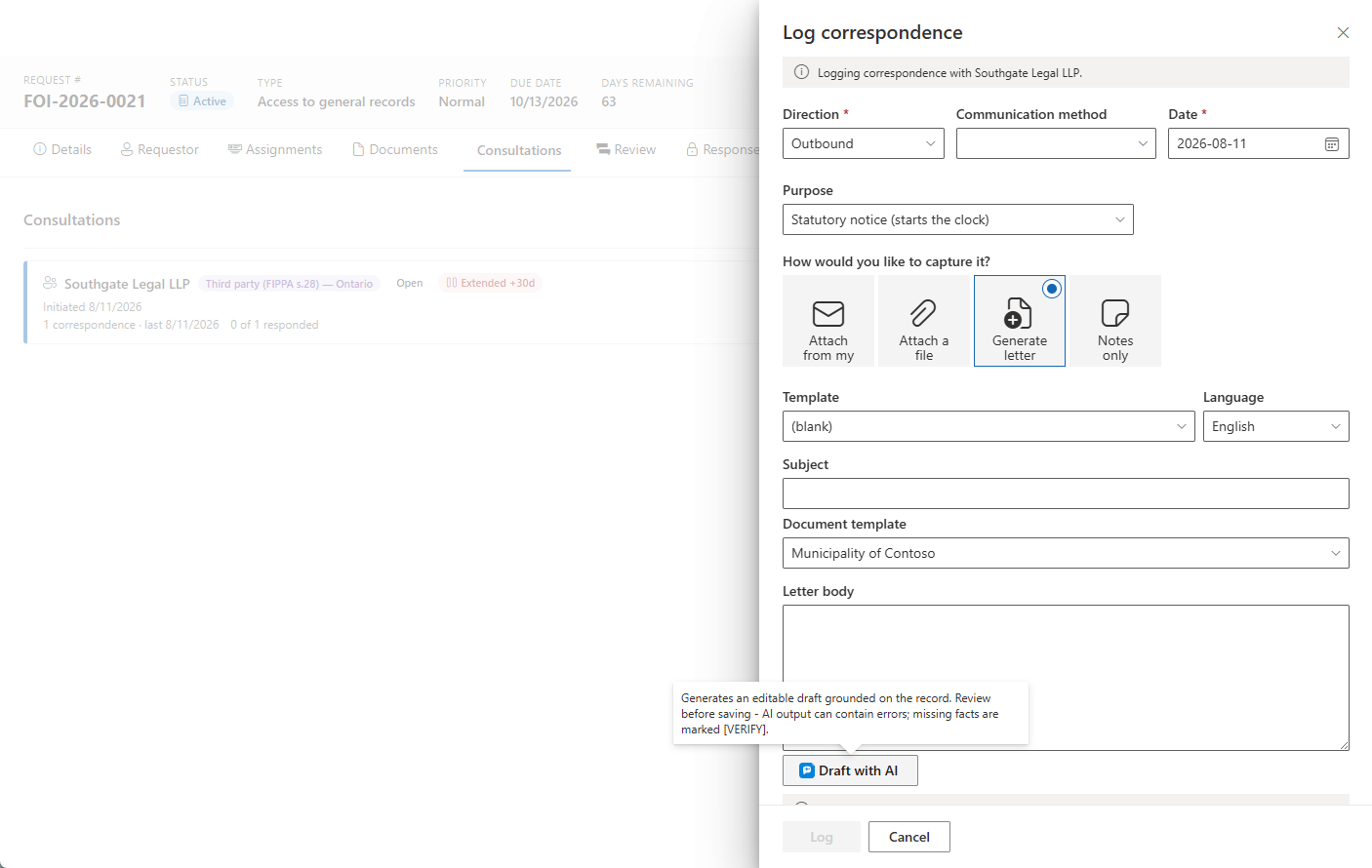
![The generated draft — missing facts marked [VERIFY], with the grounding note listing what the draft was based on](/images/accesspoint/docs/docs-sending-correspondence-draft-with-ai-verify.png)
Privacy and Responsible AI
AI Assist runs on an Azure OpenAI resource in your organization's own Azure subscription and region:
- The request's content never leaves your tenant, and Microsoft does not train its models on it.
- Prompts and responses are not stored — only usage metadata is kept.
- Every draft is editable, and unverifiable facts are marked
[VERIFY]rather than invented — a person decides what to send.
AI Assist and its individual features are enabled under Settings → Features. For how AI capabilities are configured tenant-wide, see the Features administrator page.
The PII Firewall
The composer runs a PII firewall on merge-field replacement, so a third-party notice never leaks the requestor's identity into a letter going to someone else. A missing recipient email is a validation error and nothing is sent. If Microsoft 365 itself fails the send, nothing is recorded and the error is shown verbatim.
Logging Correspondence Without Sending
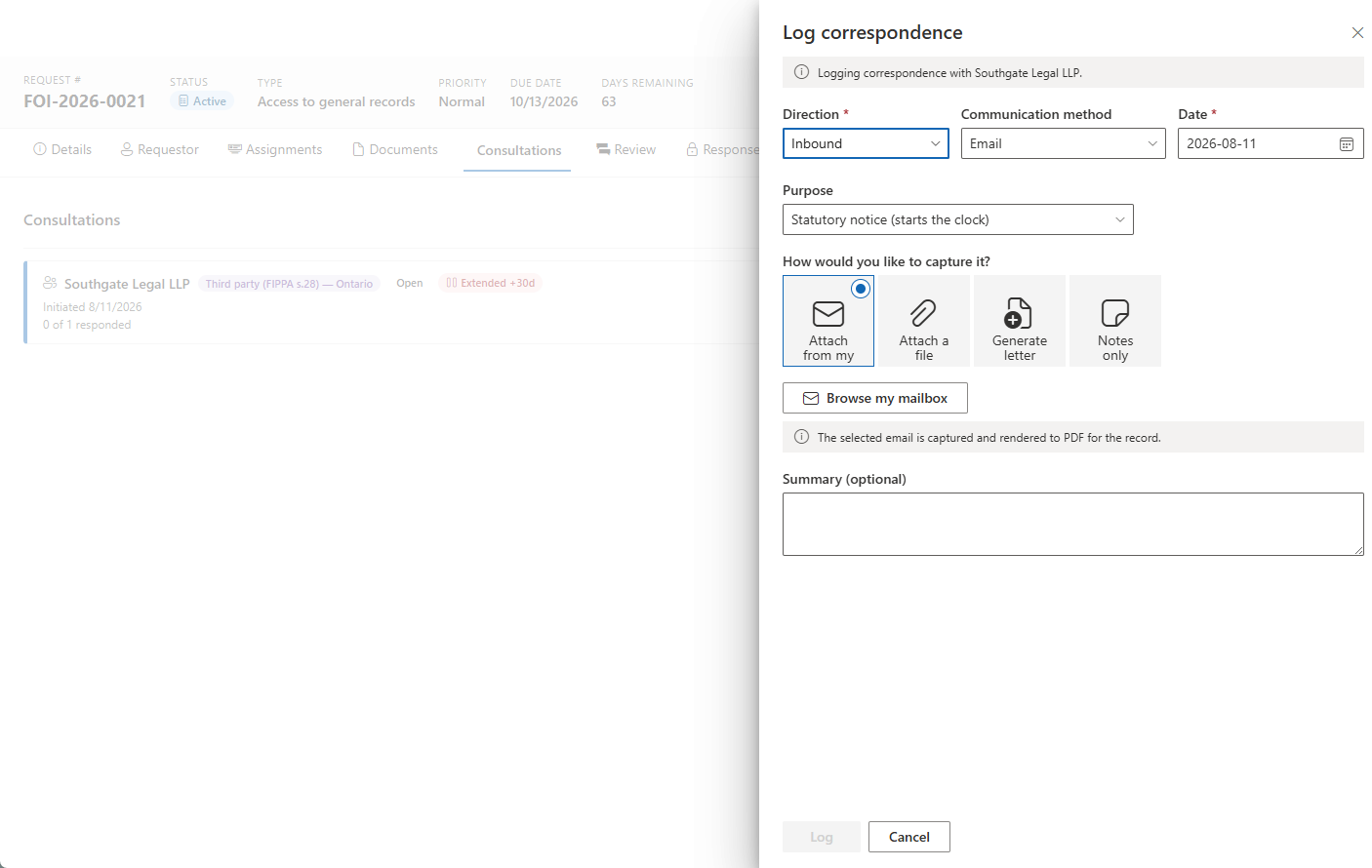
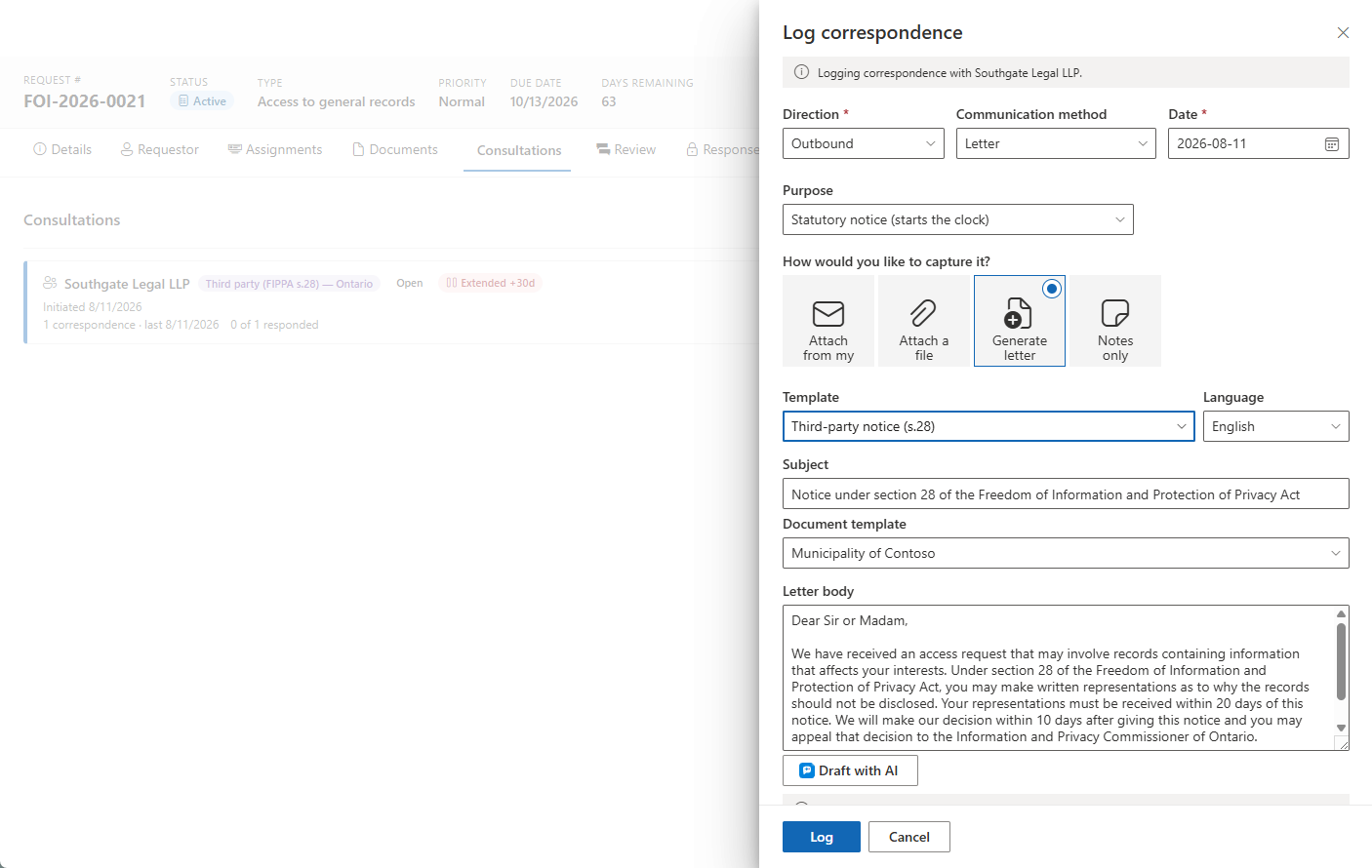
The Log correspondence panel records communications that happened outside the composer. Set the direction, channel, and date, then pick a capture method:
- Attach from my mailbox — browse Outlook and capture the message as a rendered
.emlplus its attachments. - Attach a file — upload a document you already have.
- Generate letter — render a PDF letter and attach it to the request (no send; download it from the in-panel success link).
- Notes only — record the fact of the communication with no file.
On the third-party lane a Purpose selector appears: choosing Third-party notice records the entry as the statutory notice and drives the consultation clock, so logging the notice here starts the deadlines just as sending it would. Every logged item opens as a correspondence record.